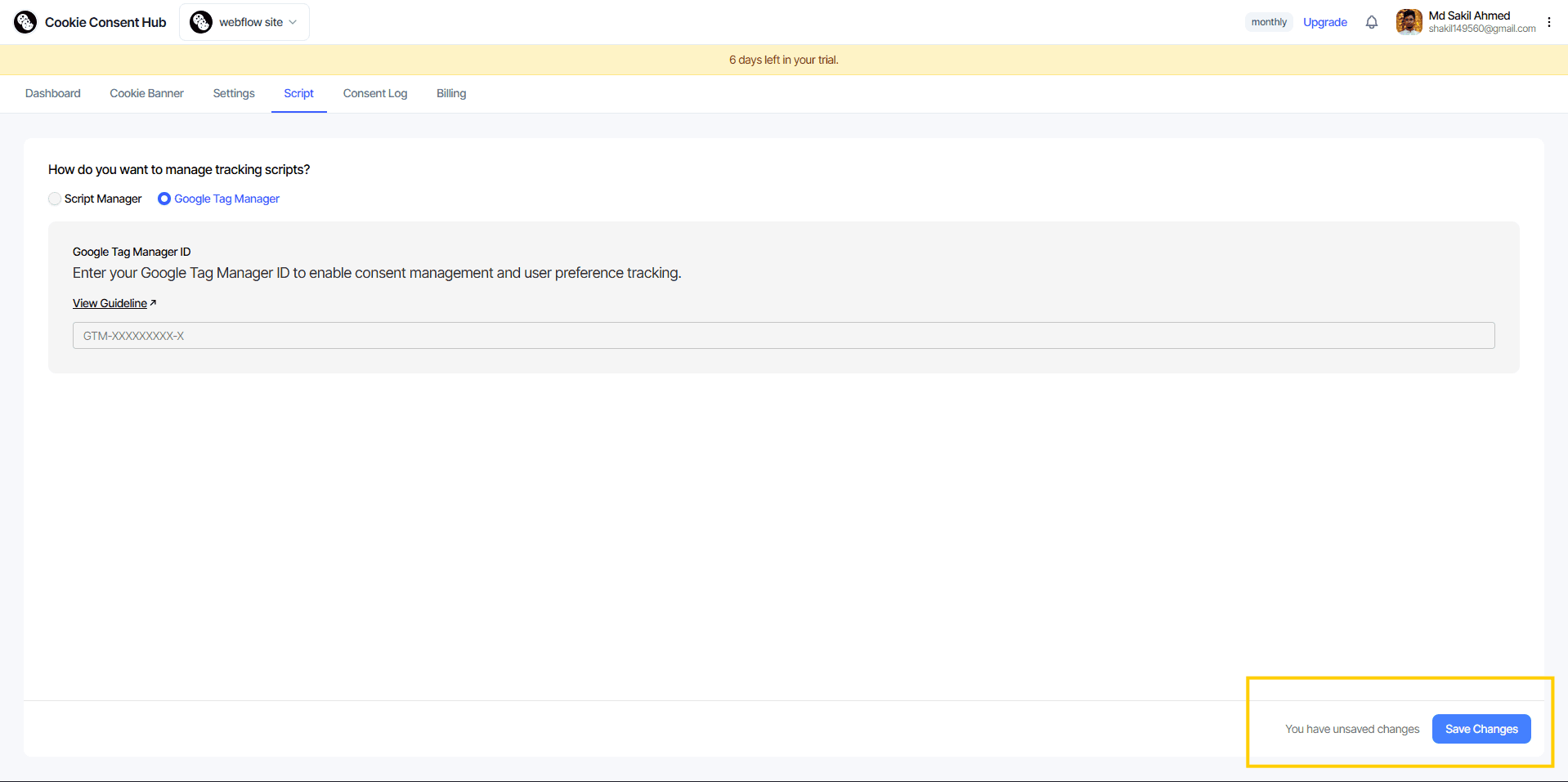
Script Management Guide
Manage how tracking scripts and third-party integrations behave on your website based on user consent.
🛠 Choose Your Management Method
In the Script section, you can choose between two primary ways to manage your scripts:
1. Script Manager (Built-in)
Recommended for users who want to manage individual tracking IDs directly within the dashboard.
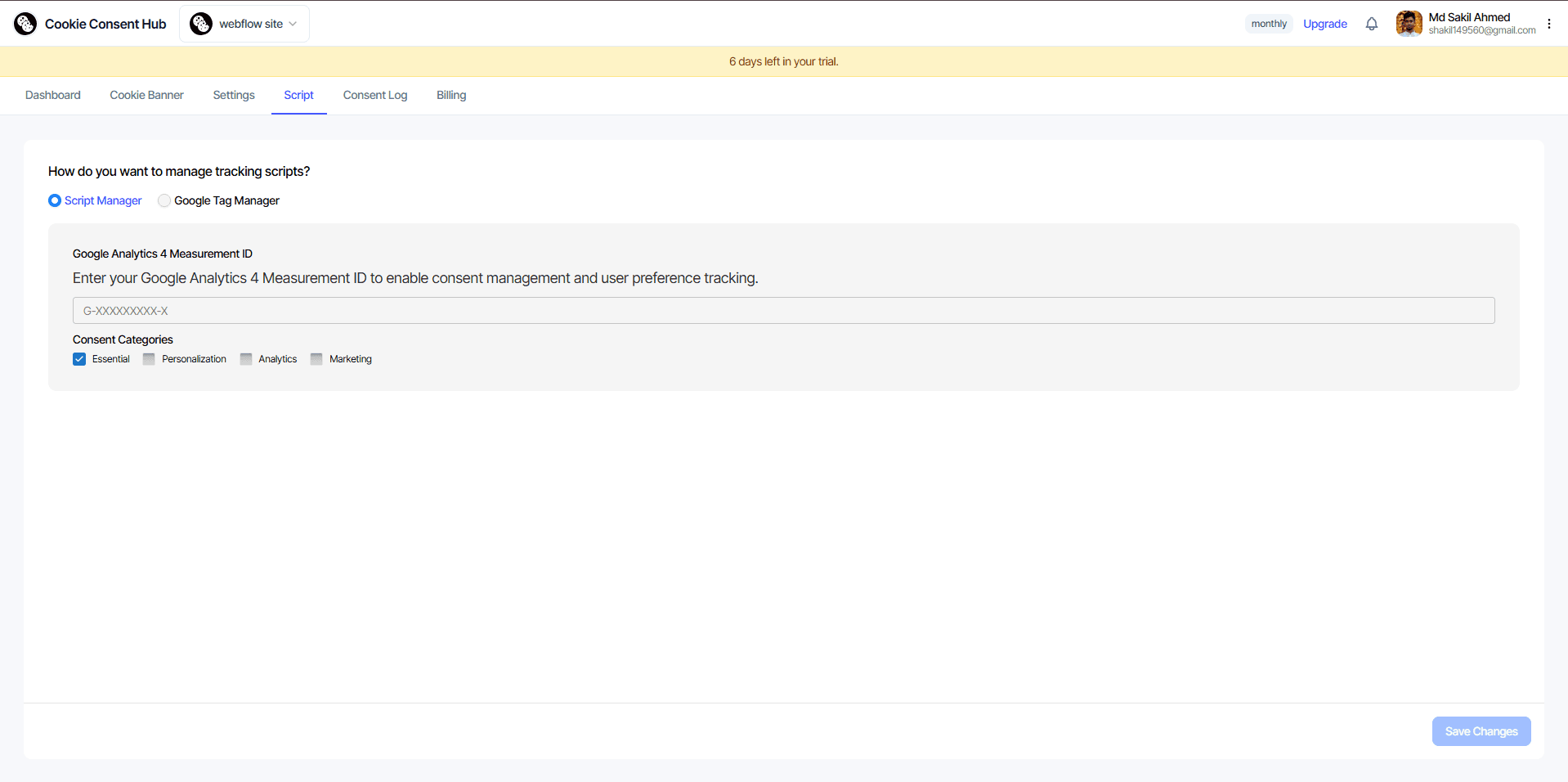
How it works: You enter the relevant ID, and the system automatically handles the consent logic for you.
Supported Integrations:
- Google Analytics 4 (GA4): Enter your Measurement ID (e.g., G-XXXXXXXXXX).
- Facebook Pixel: Enter your Pixel ID.
- TikTok Pixel: Enter your Pixel ID.
- LinkedIn Insight Tag: Enter your Tag ID.
- Hotjar: Enter your Site ID.
- Zendesk: Enter your Zendesk Key.
2. Google Tag Manager (GTM)
Recommended for power users who already use GTM to manage their marketing and analytics tags.
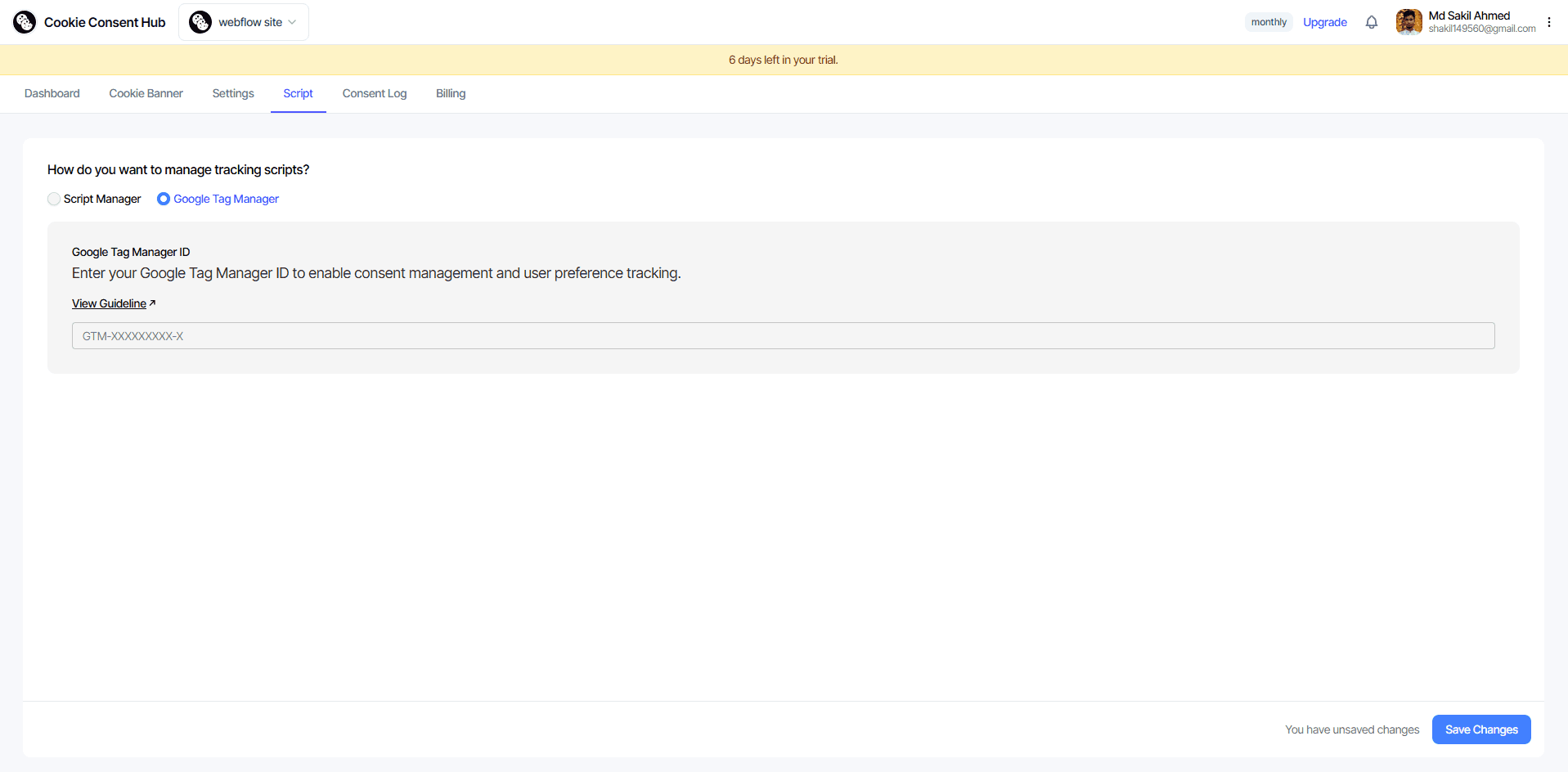
How it works: Simply enter your GTM ID (e.g., GTM-XXXXXXX).
Consent Mode: This integration is designed to work with Google Consent Mode to ensure your GTM tags respect user choices.
🔒 Consent Categories
For every script you add through the Script Manager, you must ensure that users have the option to opt-in or out.
- Mapping: Each script is tied to specific consent categories (e.g., Analytics, Marketing, Personalization).
- Behavior: The scripts will only fire once the user has provided explicit consent for the corresponding category in the banner.
Don't forget to publish. Saved changes are not live until you publish.
Always remember to click the 'Publish' button in the Customization section to ensure your script settings are updated on your live website.