Google Tag Manager Integration
Connect Cookie Consent Hub with Google Tag Manager and install the FlowAppz GTM template.
First, go to the Script menu.
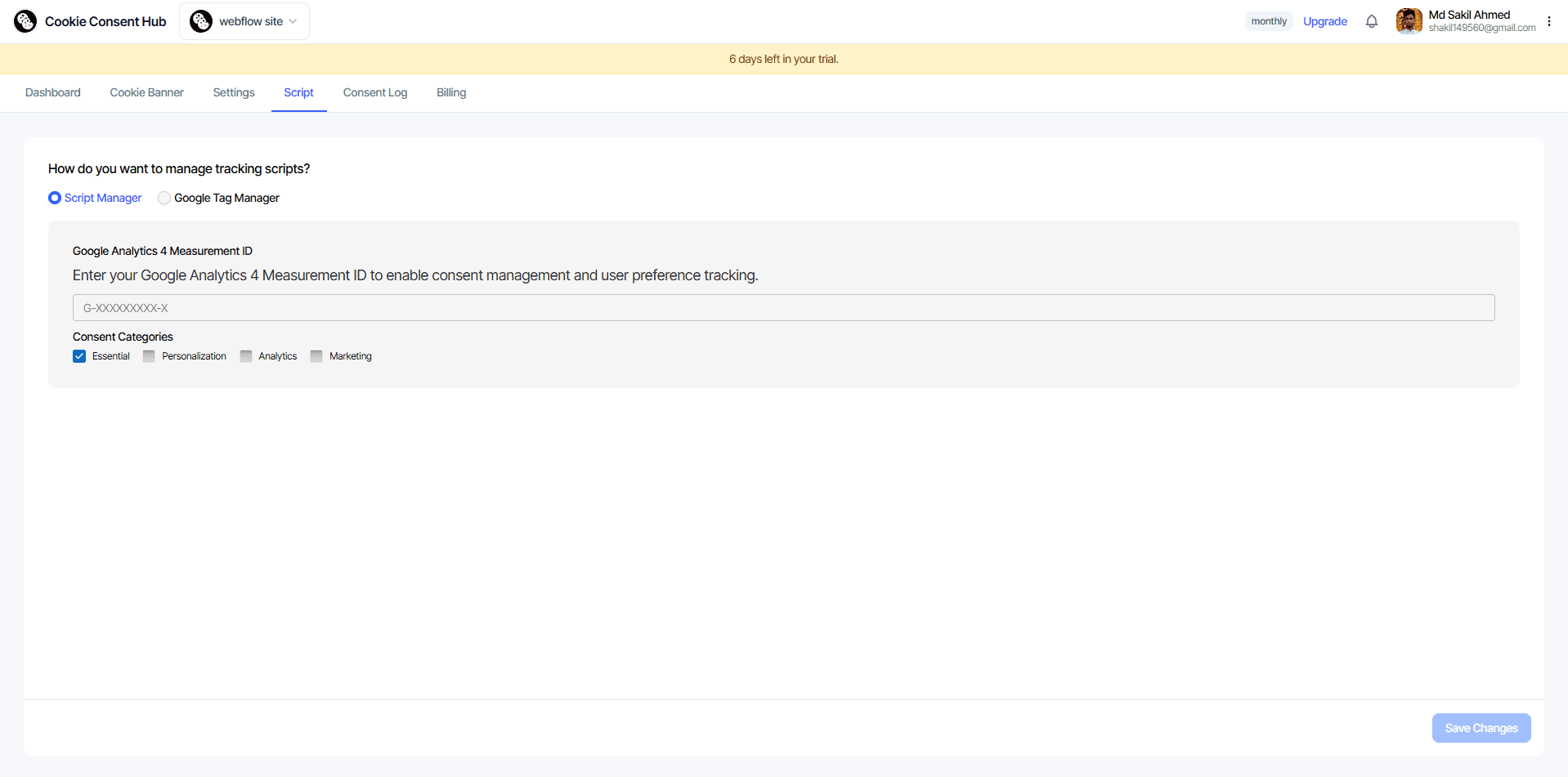
Then, select Google Tag Manager to open the Google Tag Manager settings.
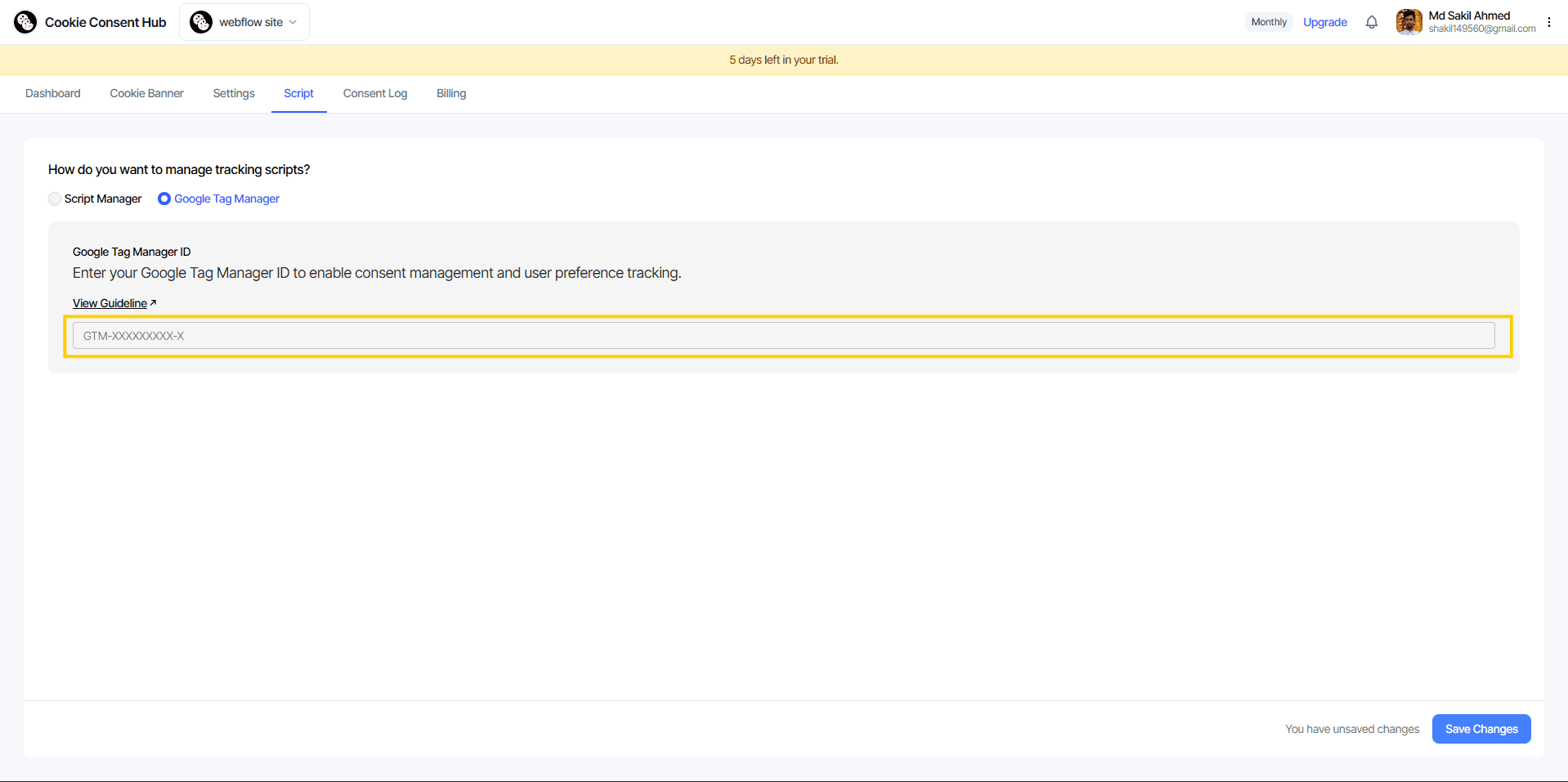
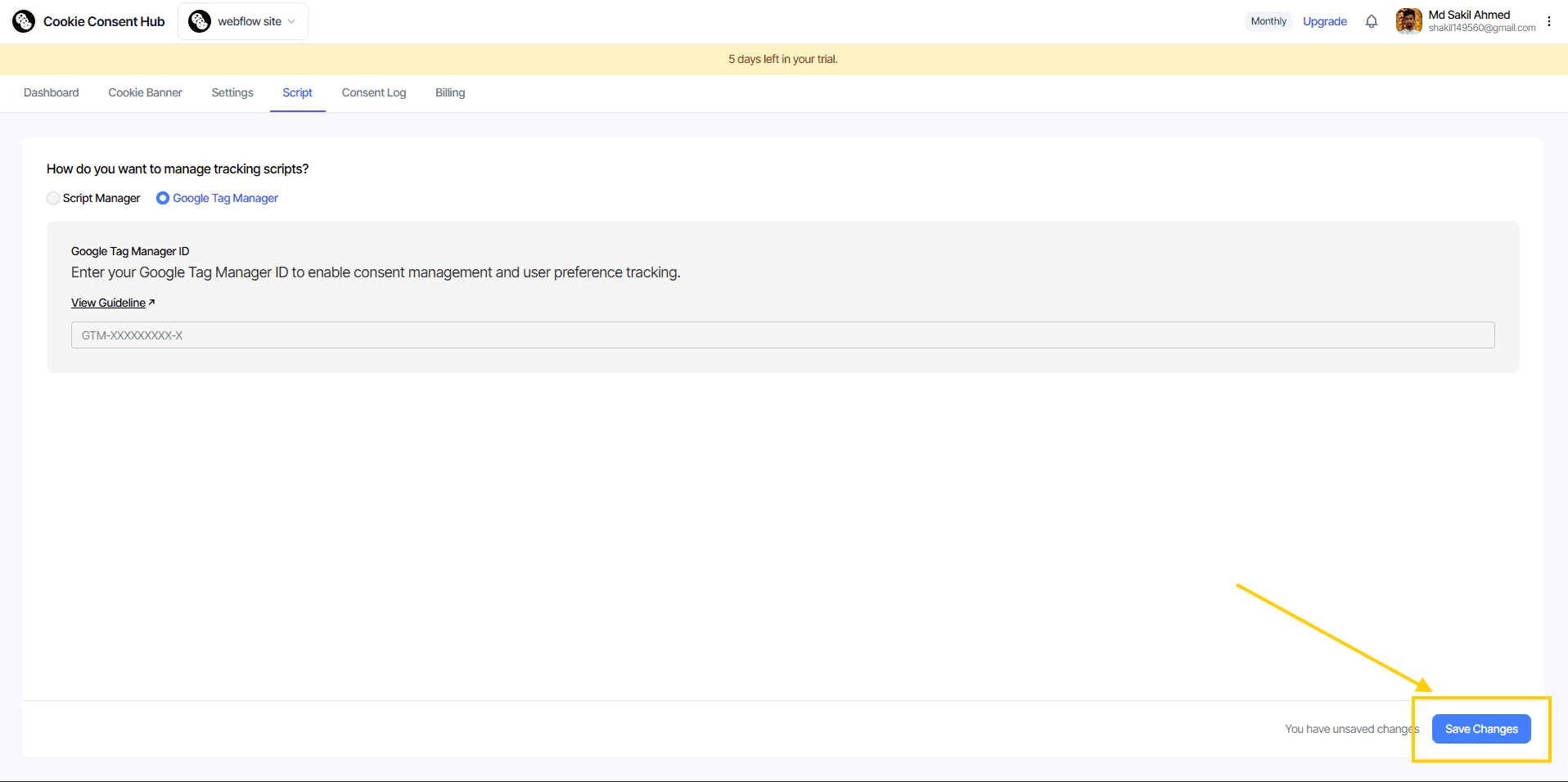
Then, enter your Google Tag Manager ID and click Save Changes.
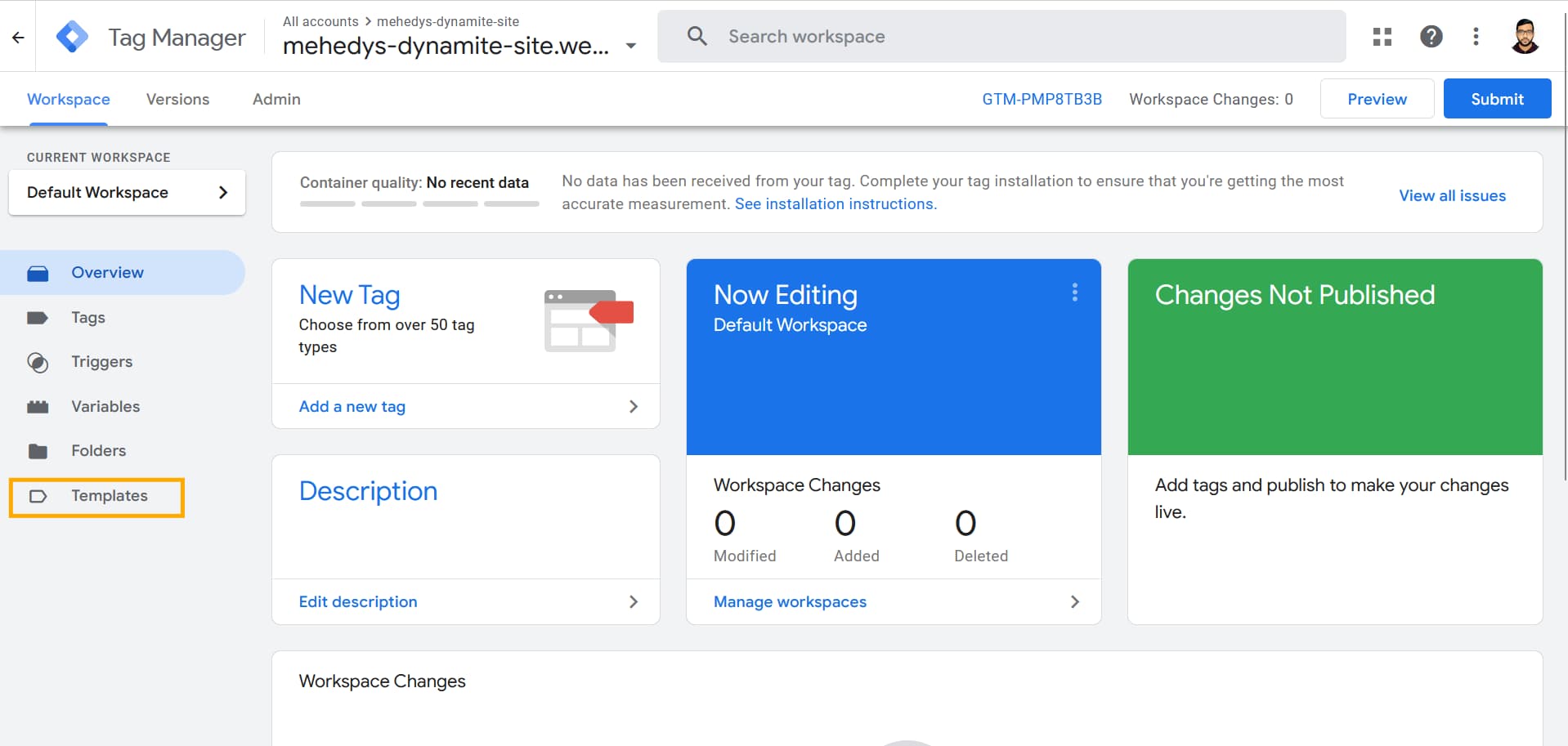
Then, go to your Google Tag Manager account and navigate to the Templates tab.
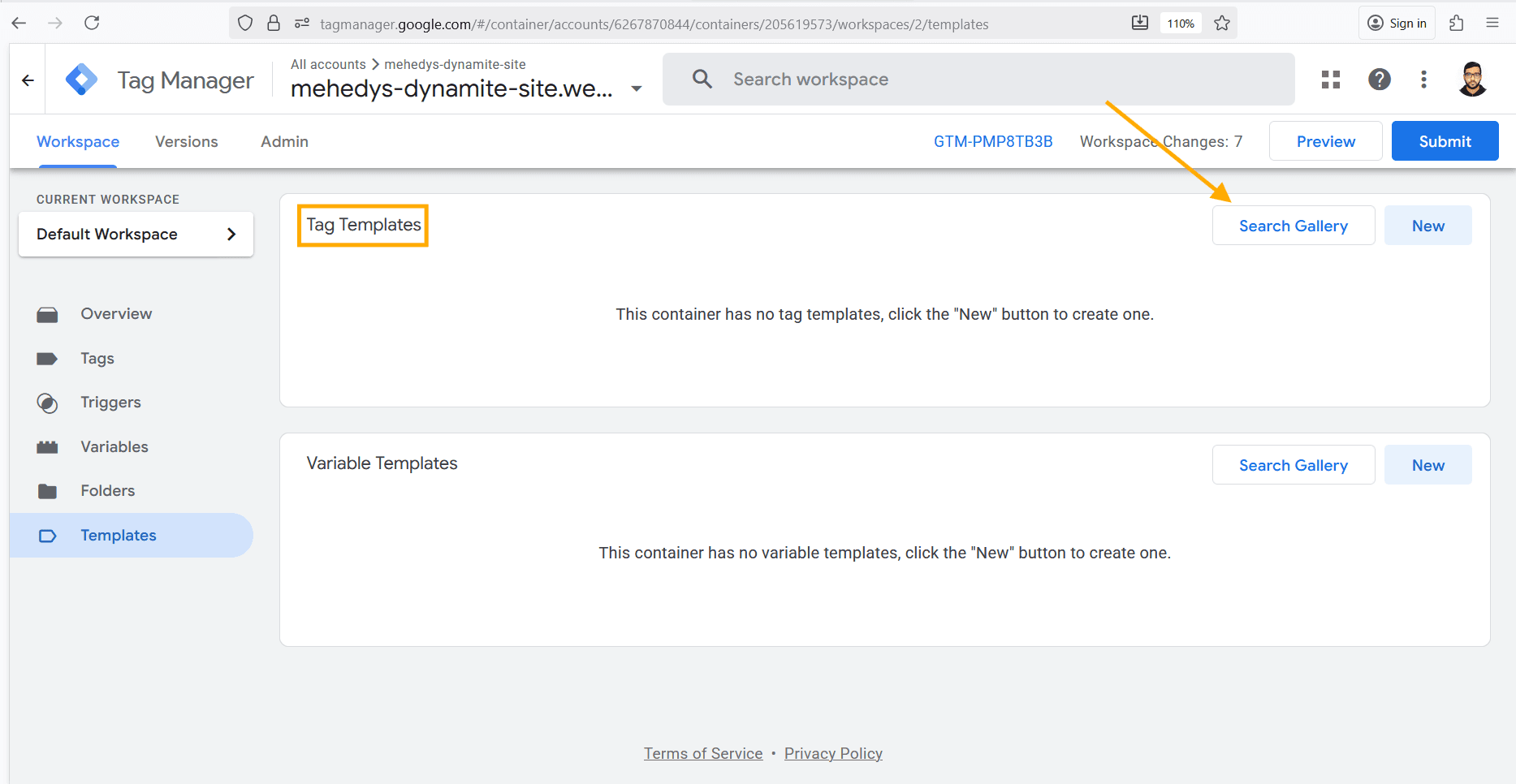
Then, click Search Gallery under Tag Templates.
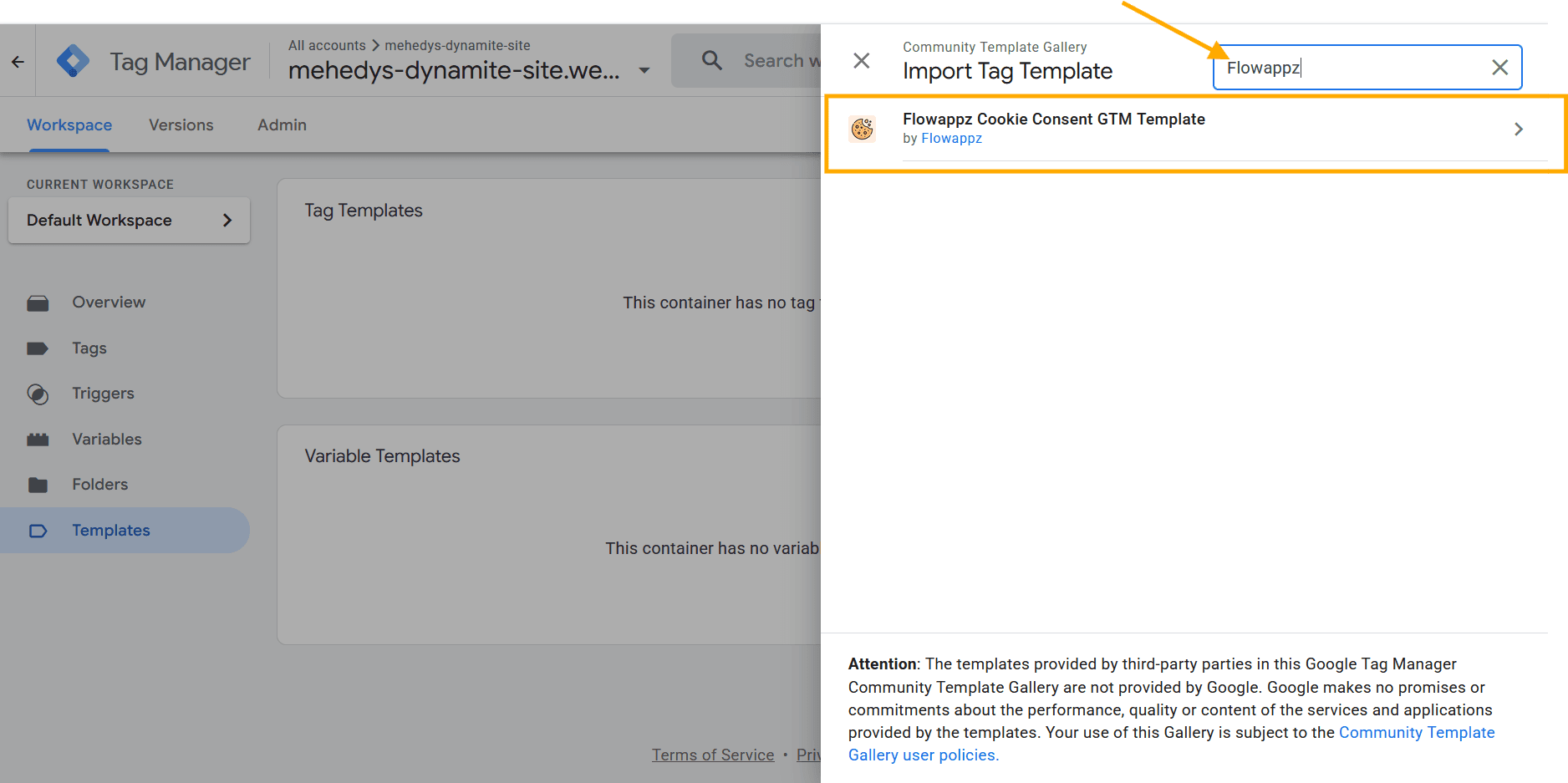
Then, search for FlowAppz in the search bar and select FlowAppz Cookie Consent GTM Template from the results.
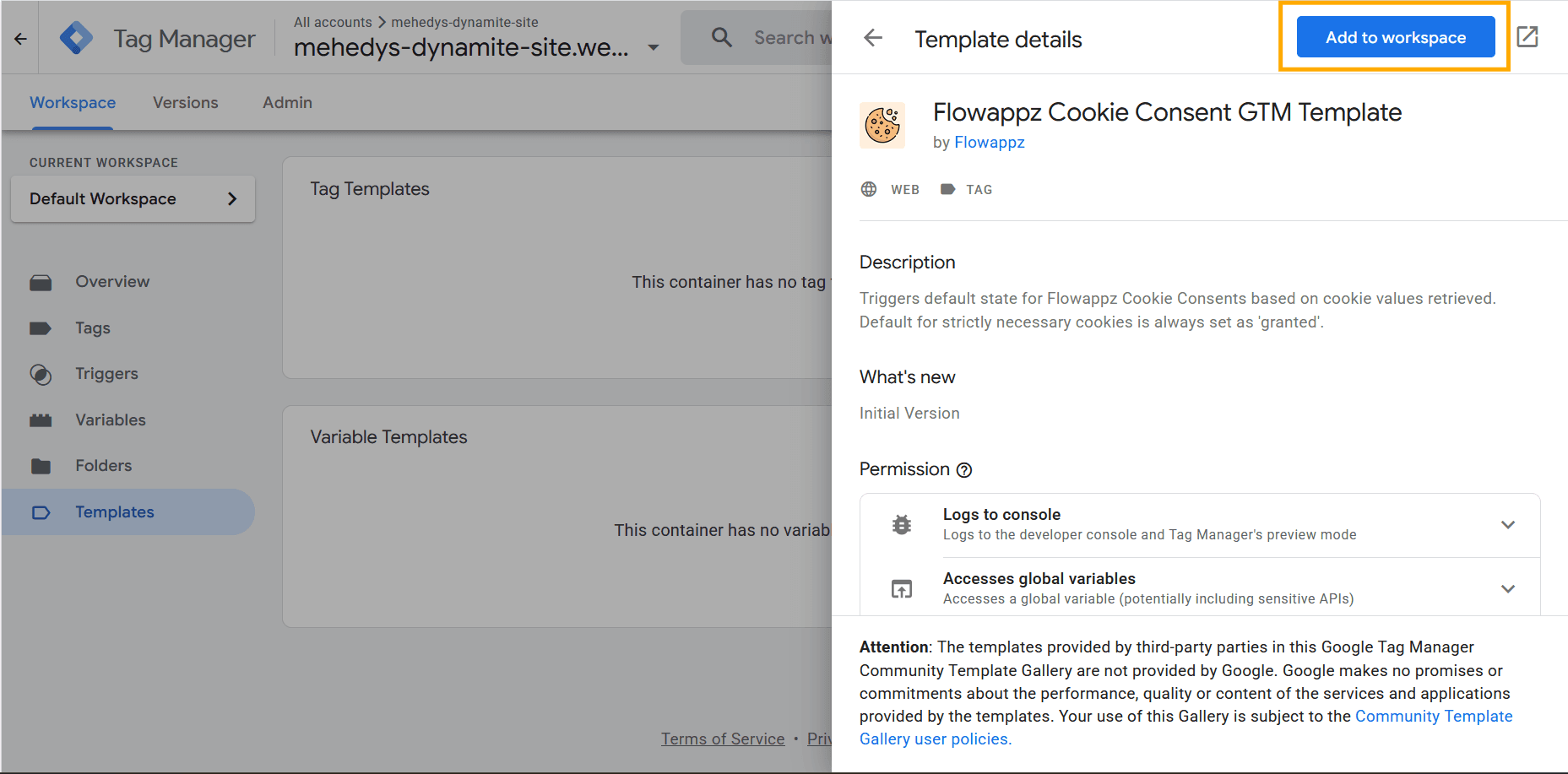
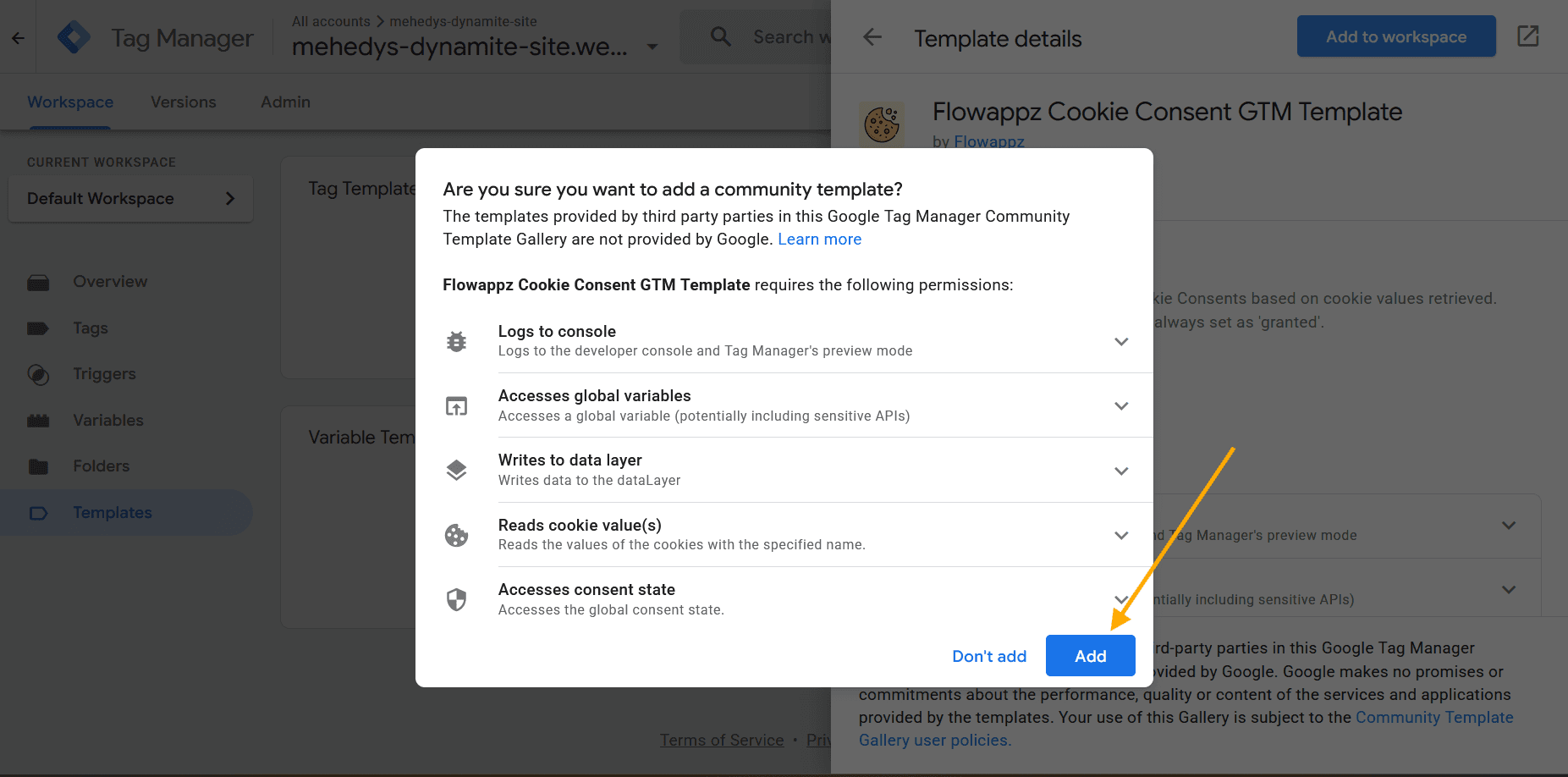
Then, click Add to Workspace.
Then, click Add to include it in your Google Tag Manager workspace.
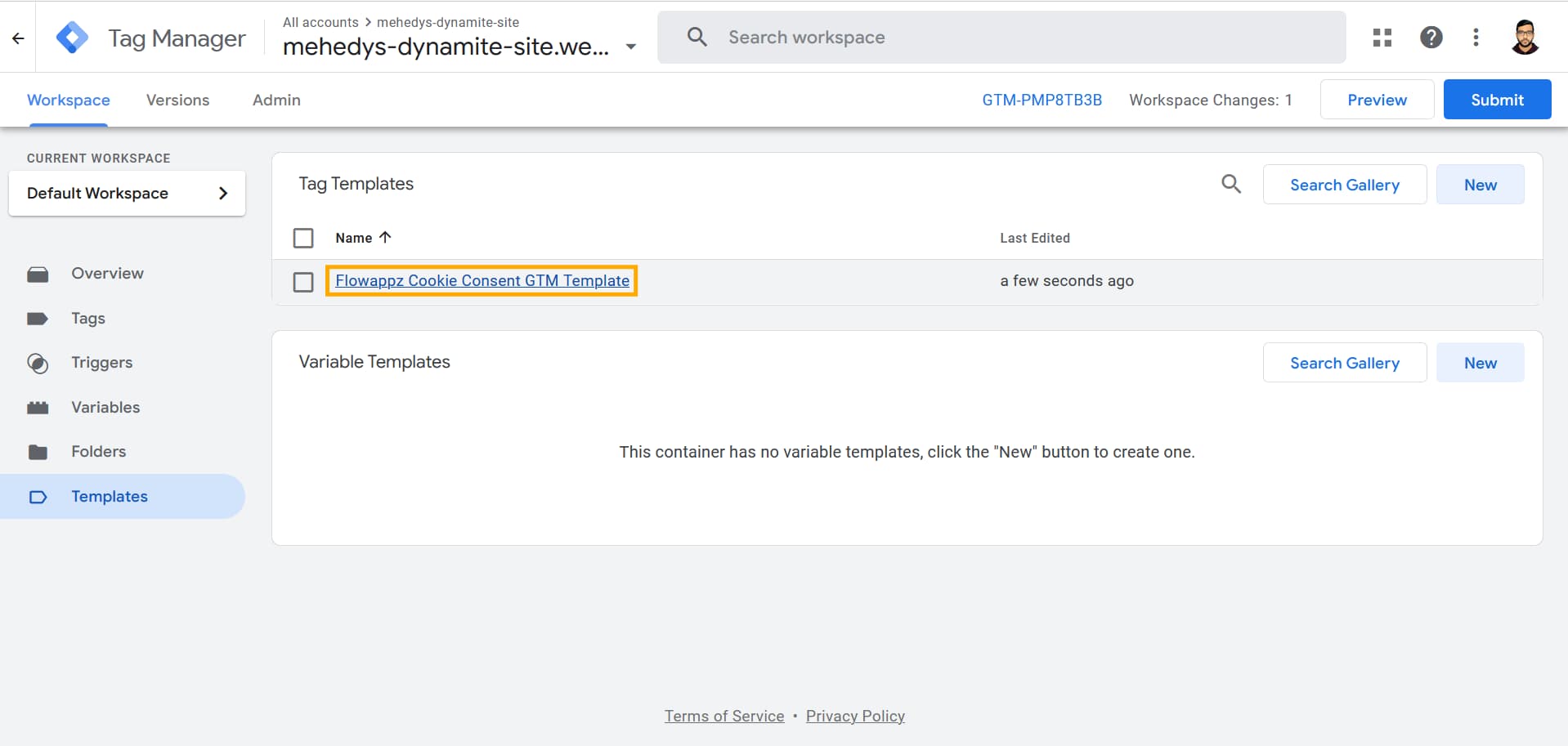
Now, you should see the FlowAppz Cookie Consent GTM Template in the tag templates list.
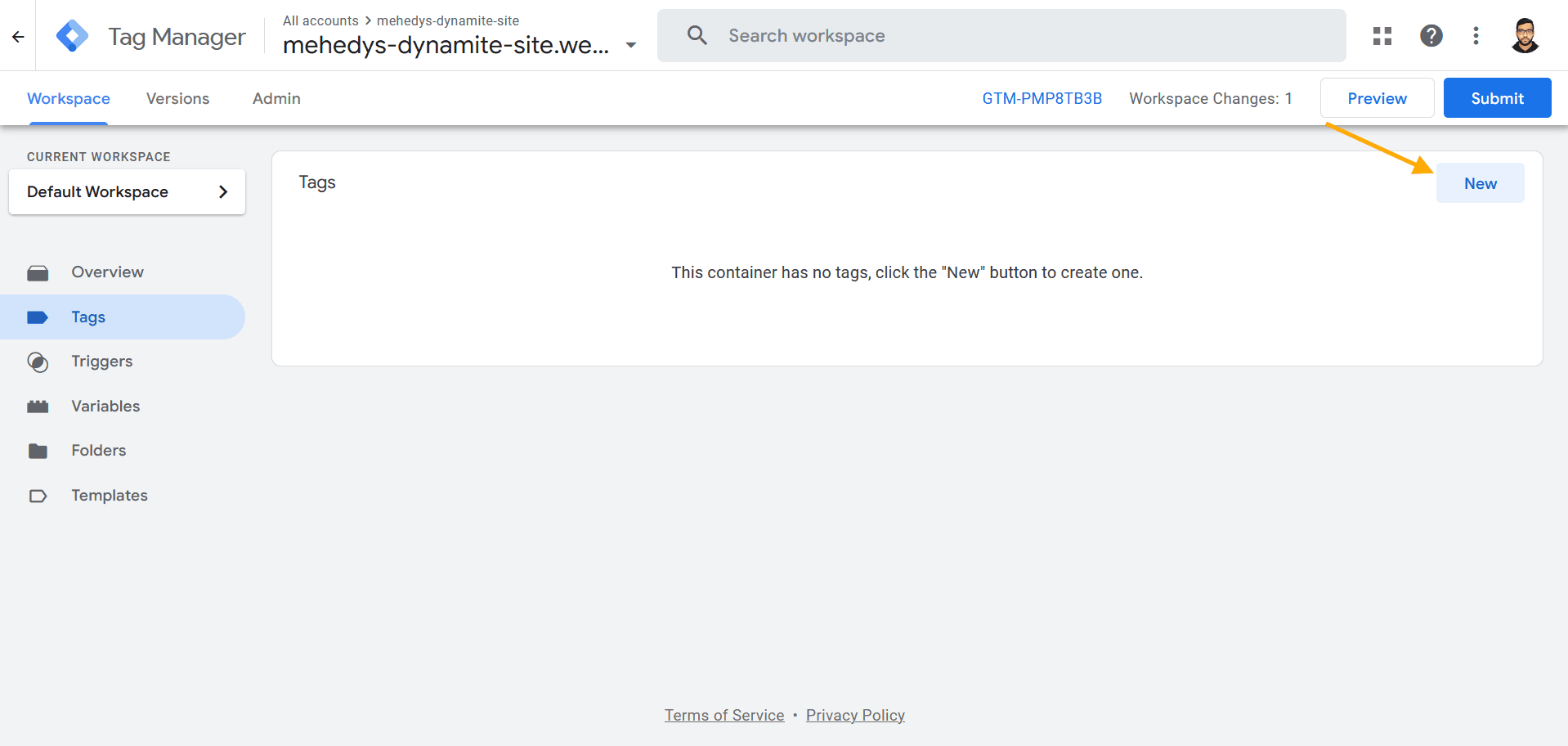
Then, go to the Tags tab and click New.
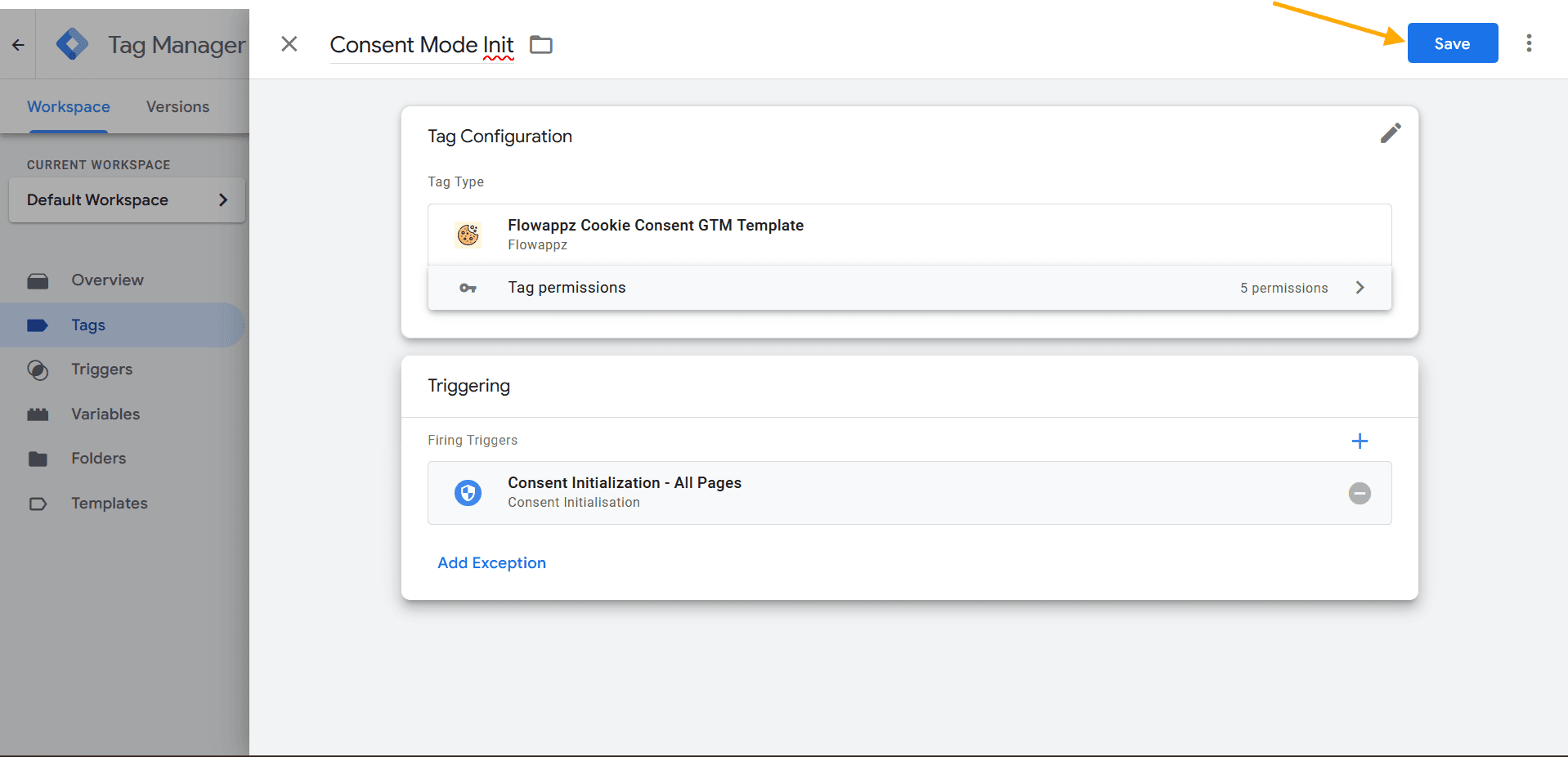
Then, name the new tag Consent Mode Init.
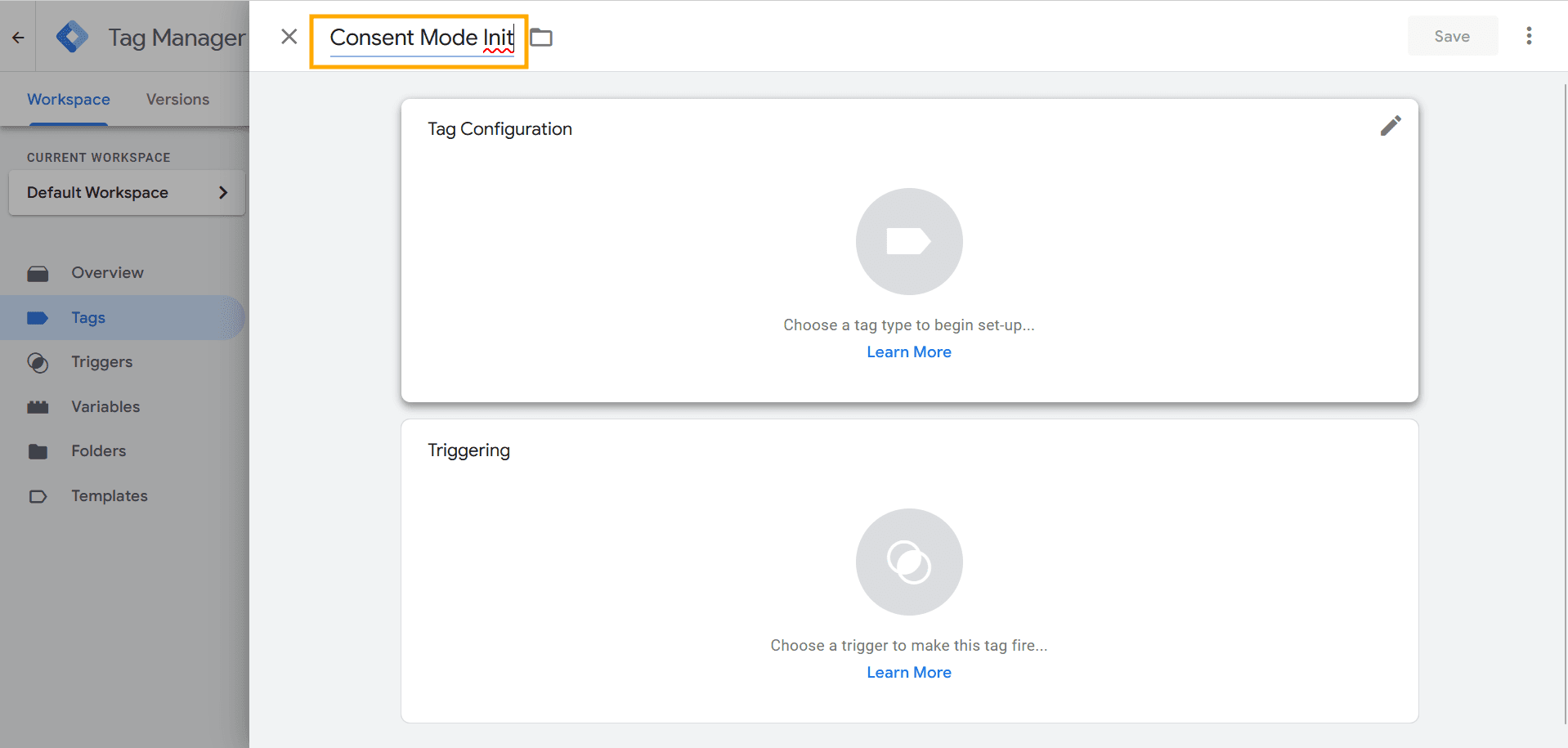
Then, click Tag Configuration.
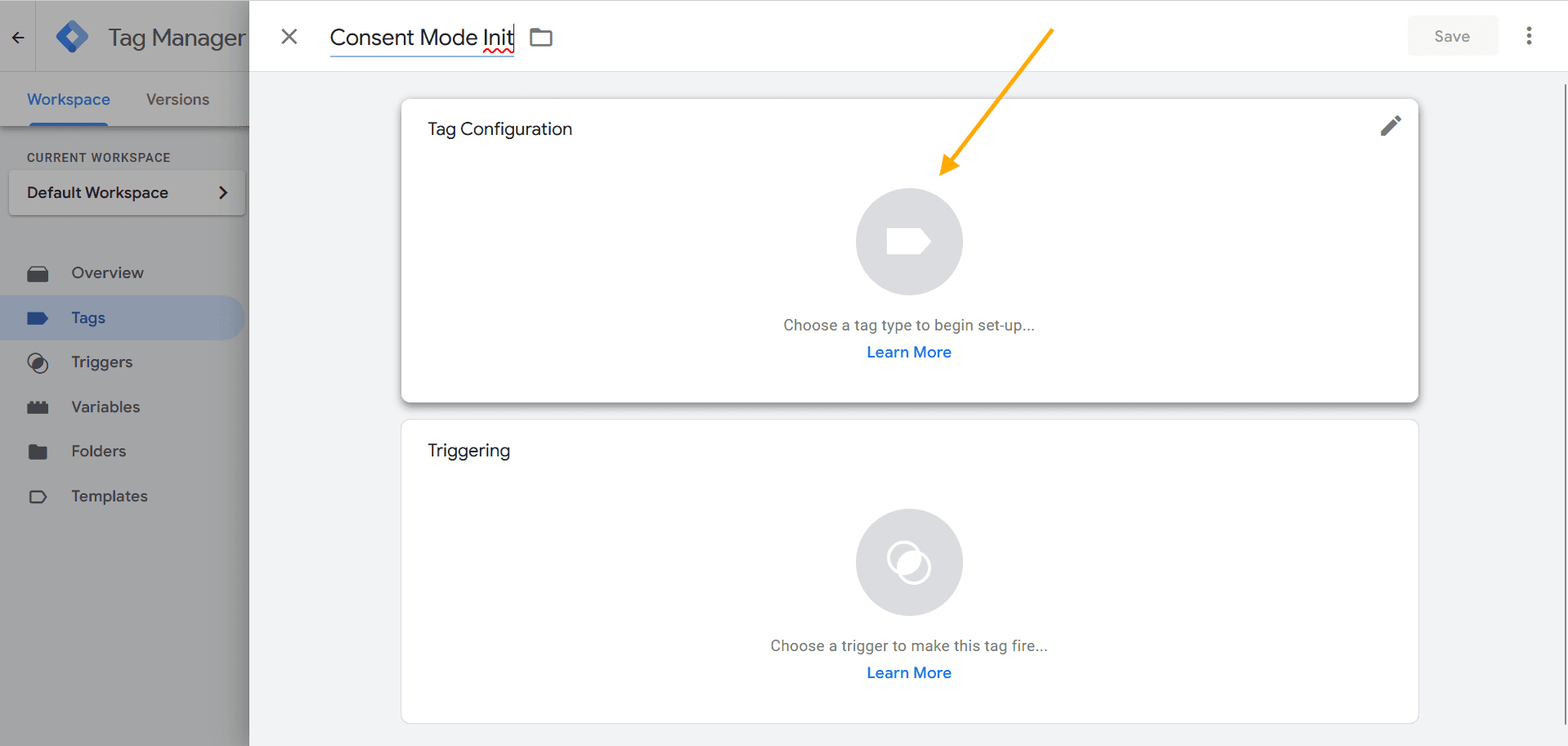
Then, choose the FlowAppz Cookie Consent GTM Template.
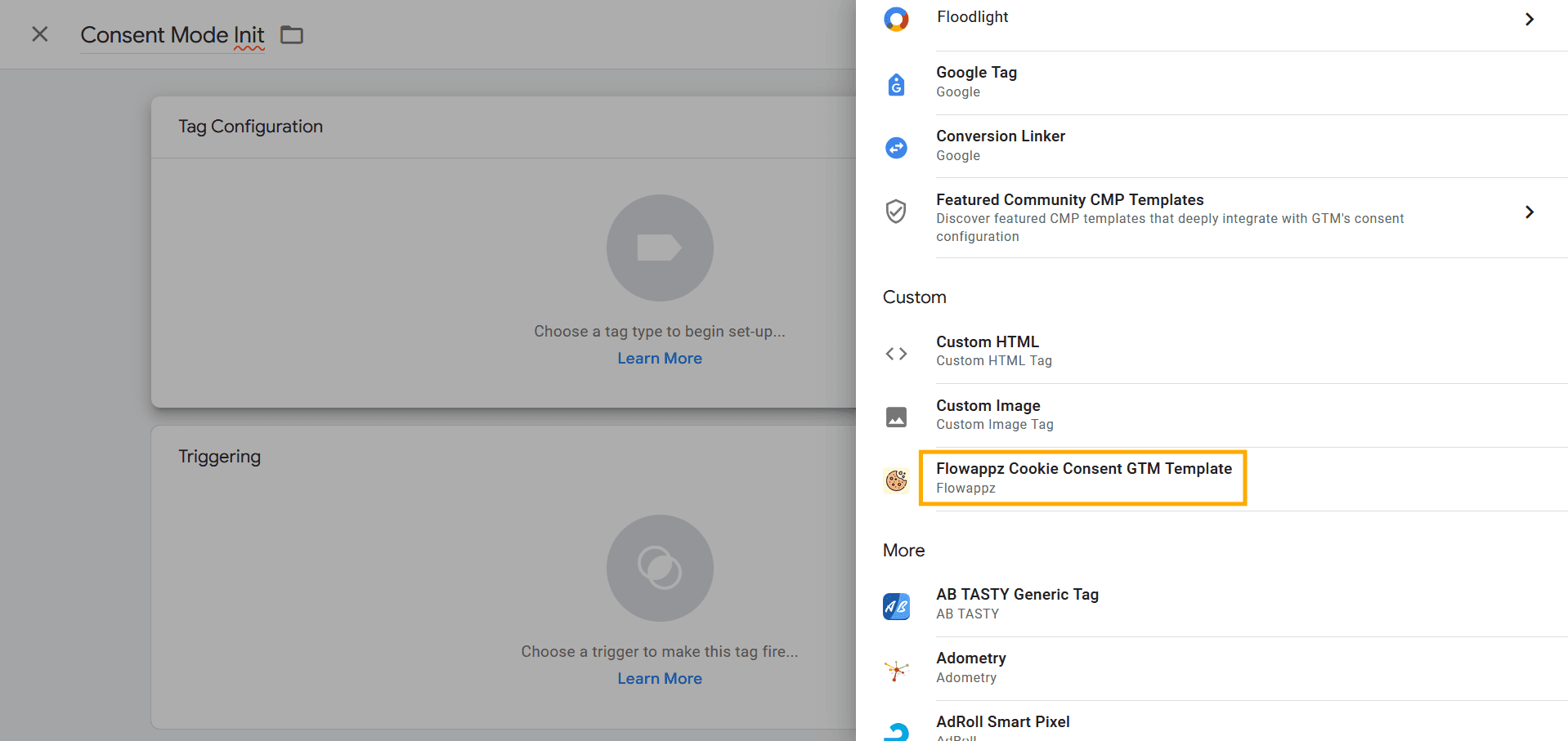
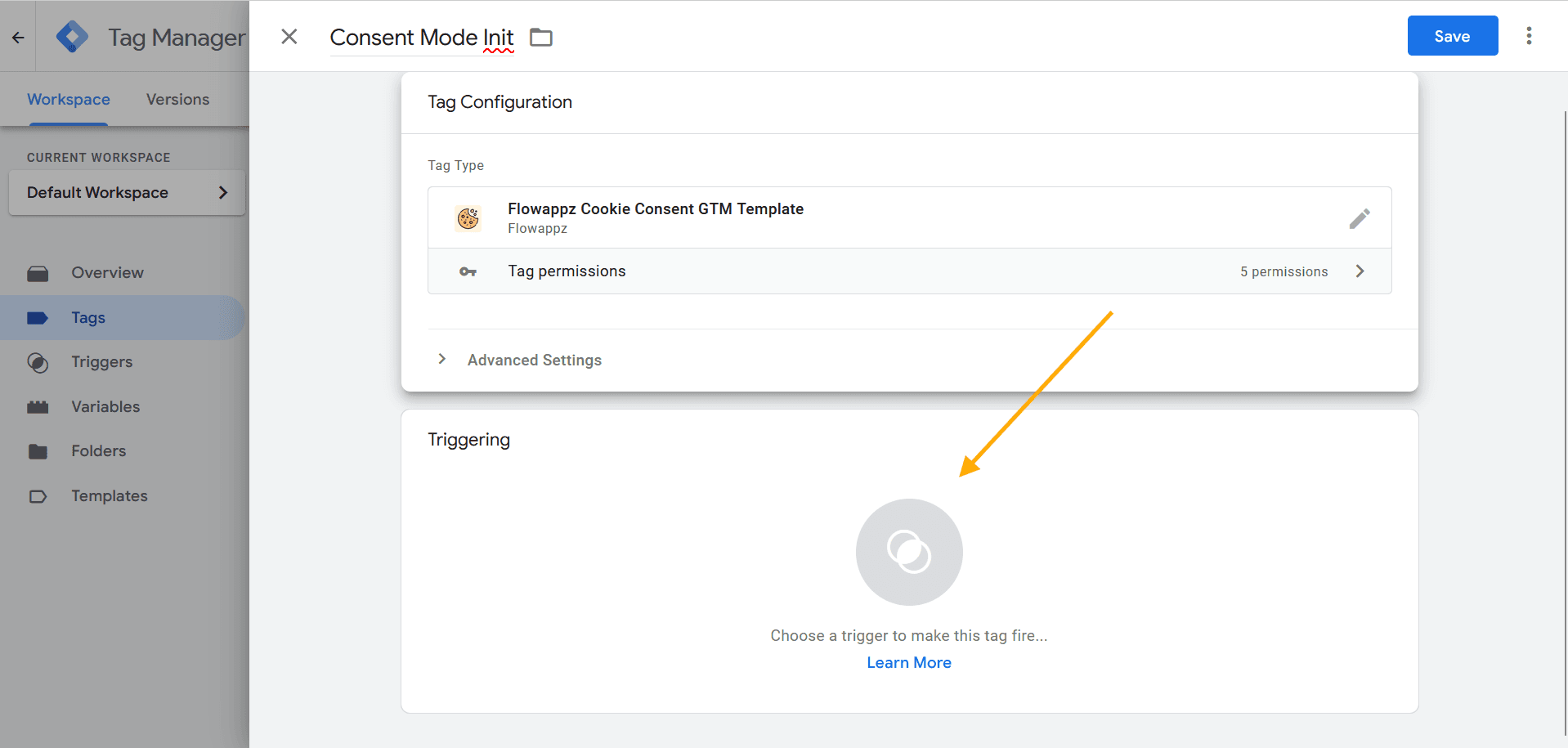
Then, click Triggering.
Then, select Consent Initialization - All Pages.
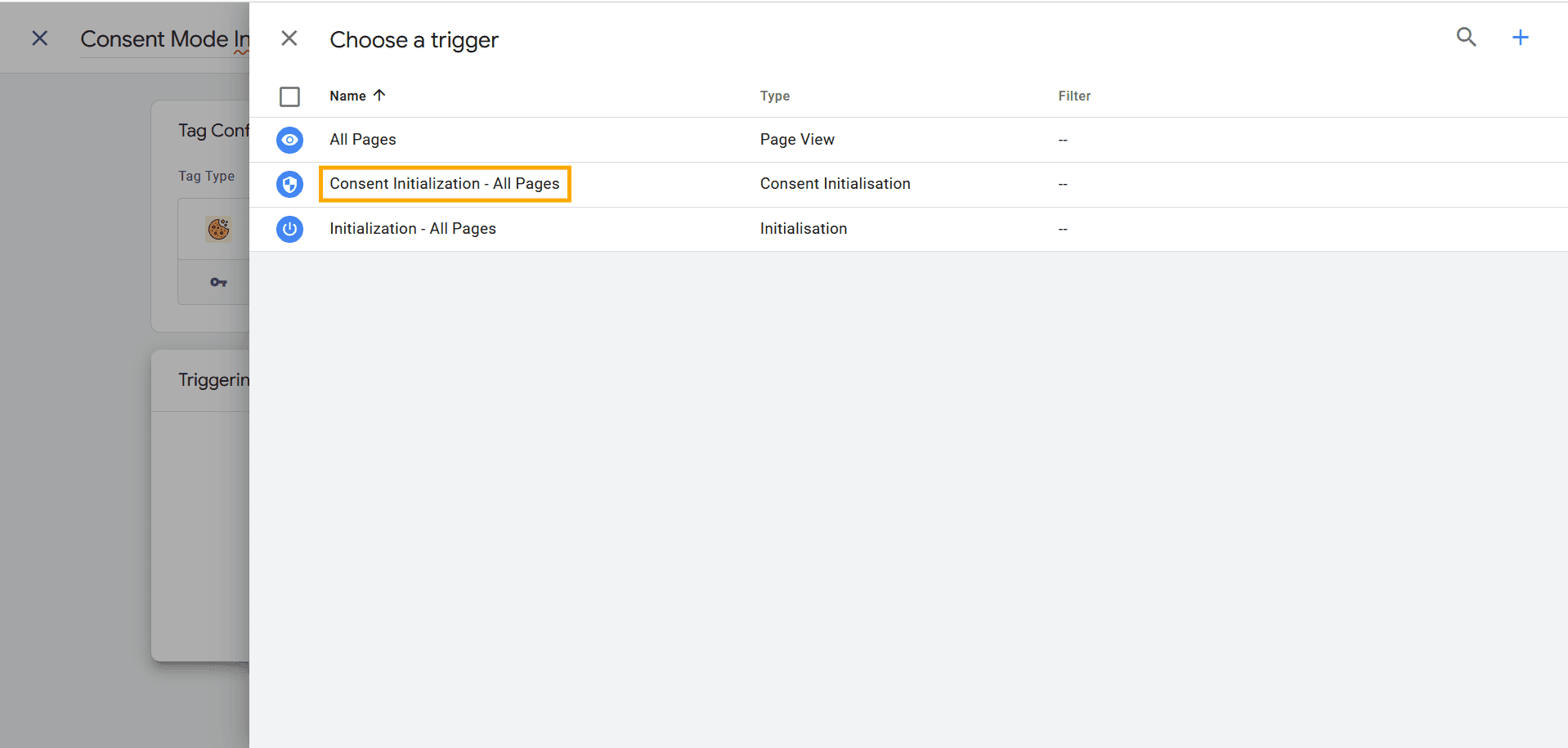
Then, click Save.
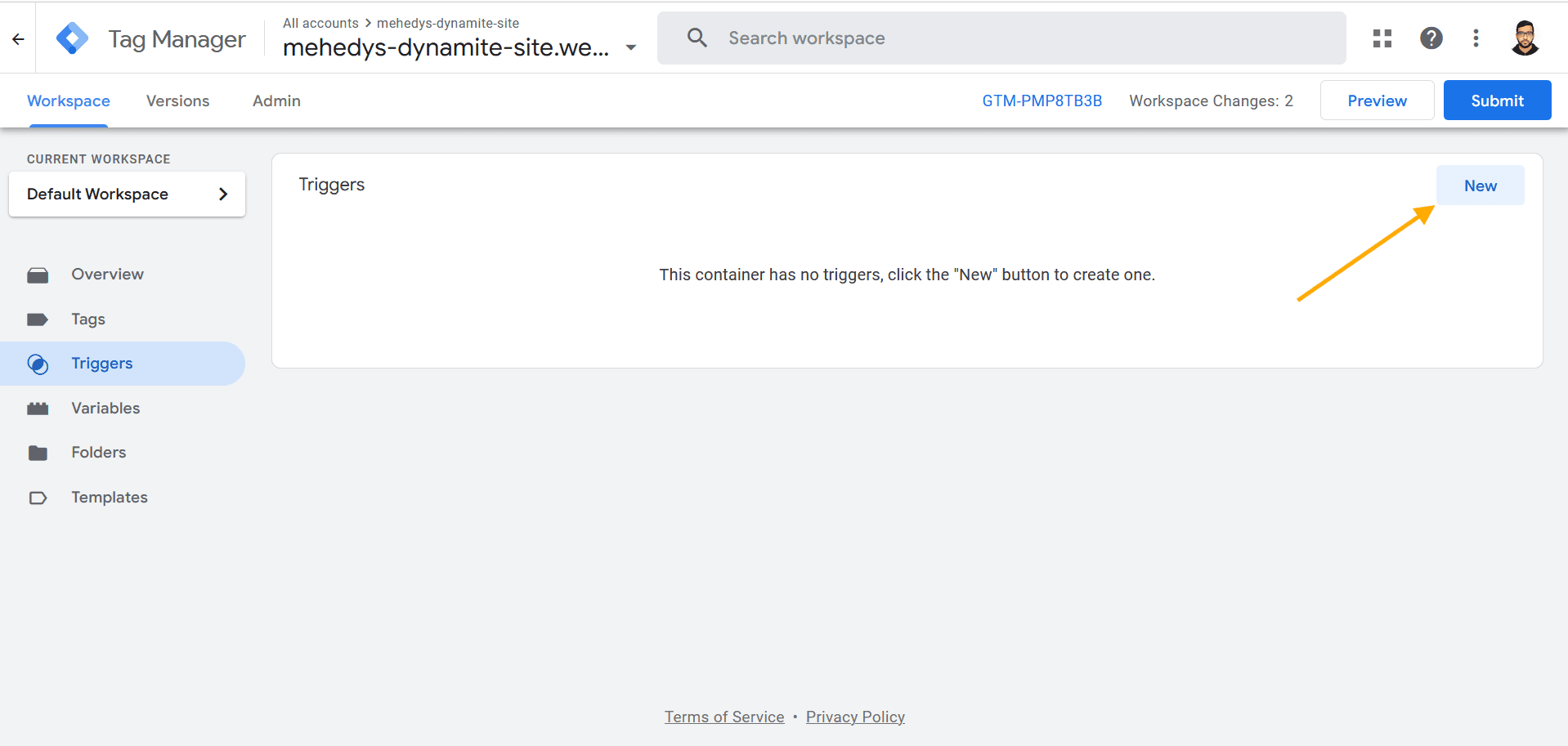
Then, go to the Triggers tab and click New.
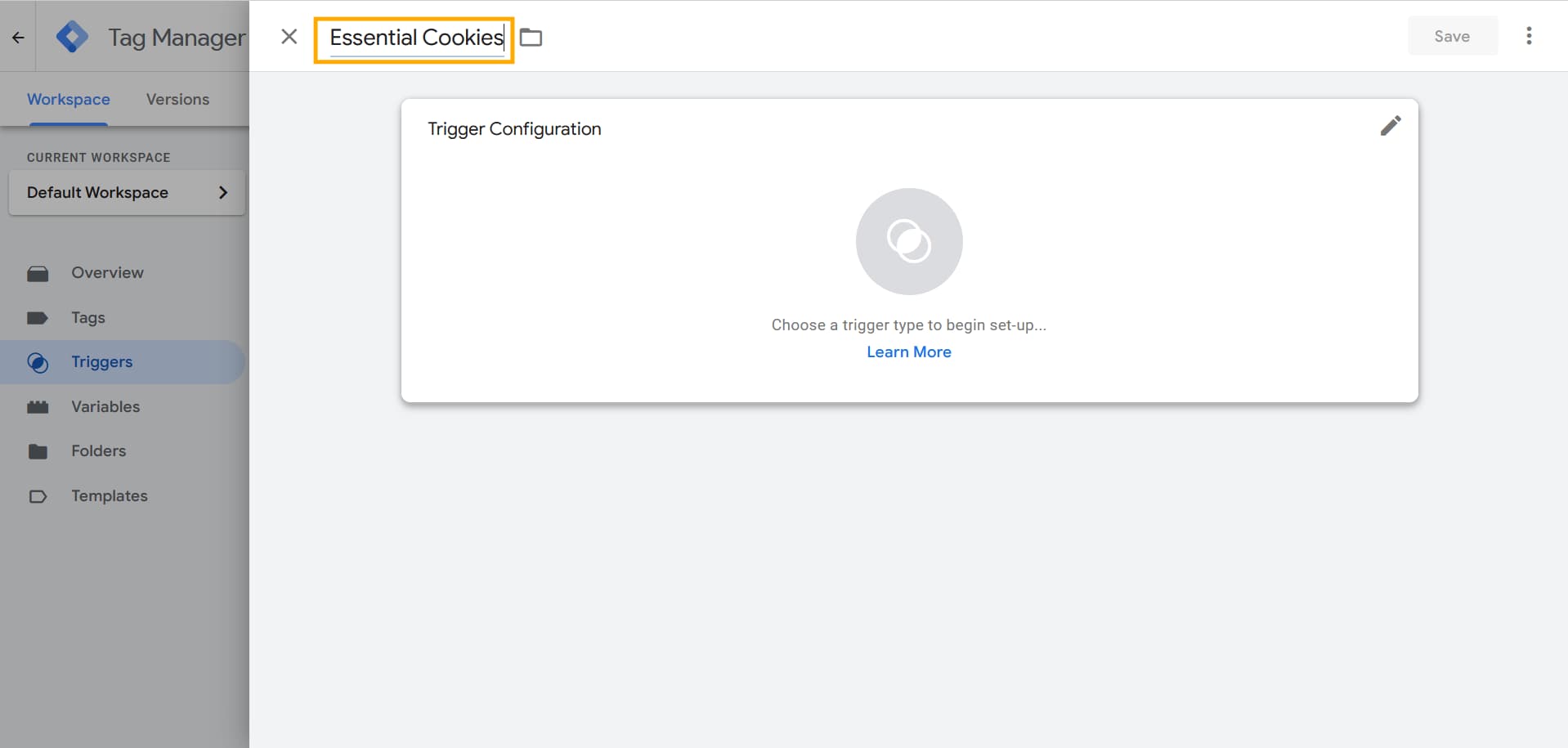
Name the first trigger Essential Cookies.
Then, click Trigger Configuration.
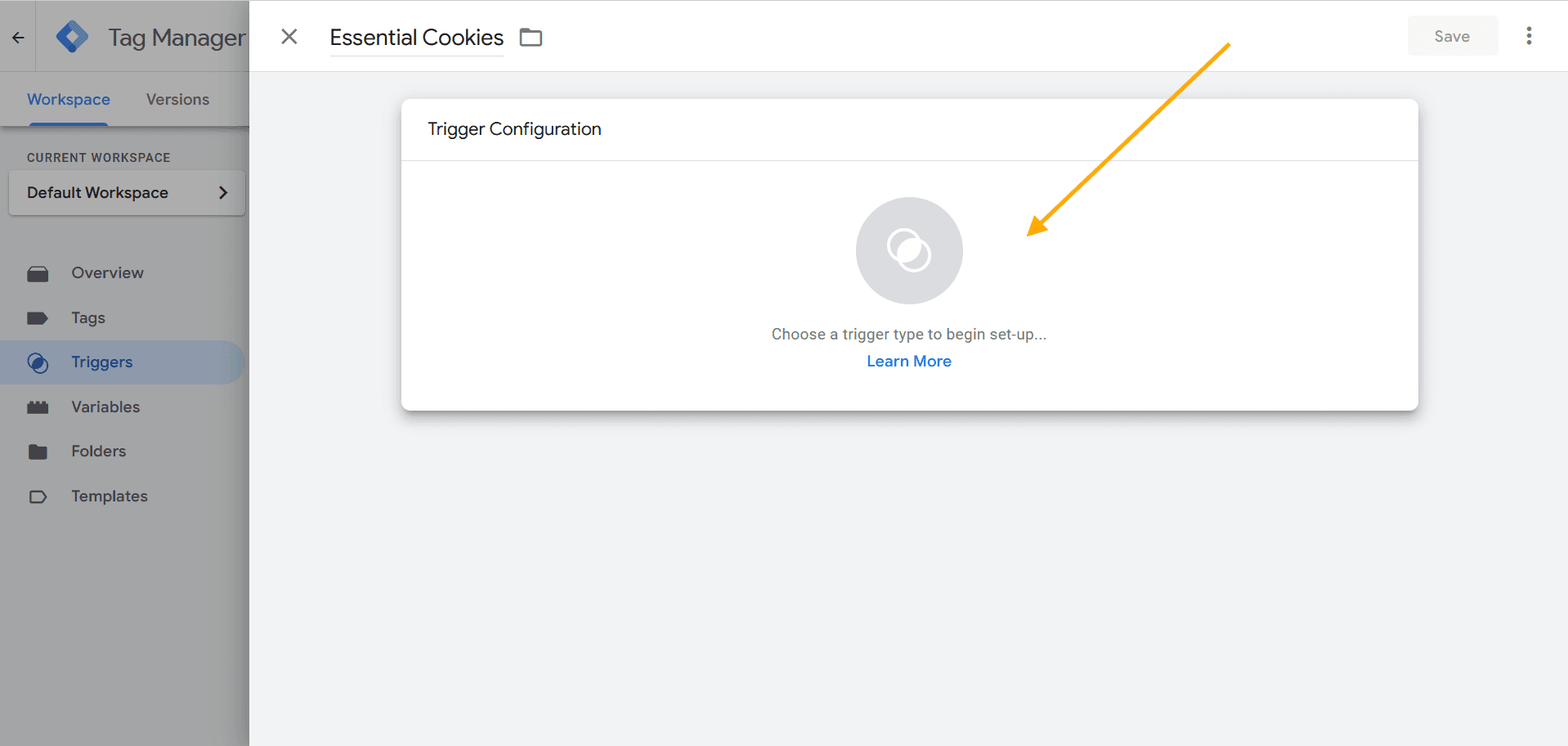
Then, select Custom Event.
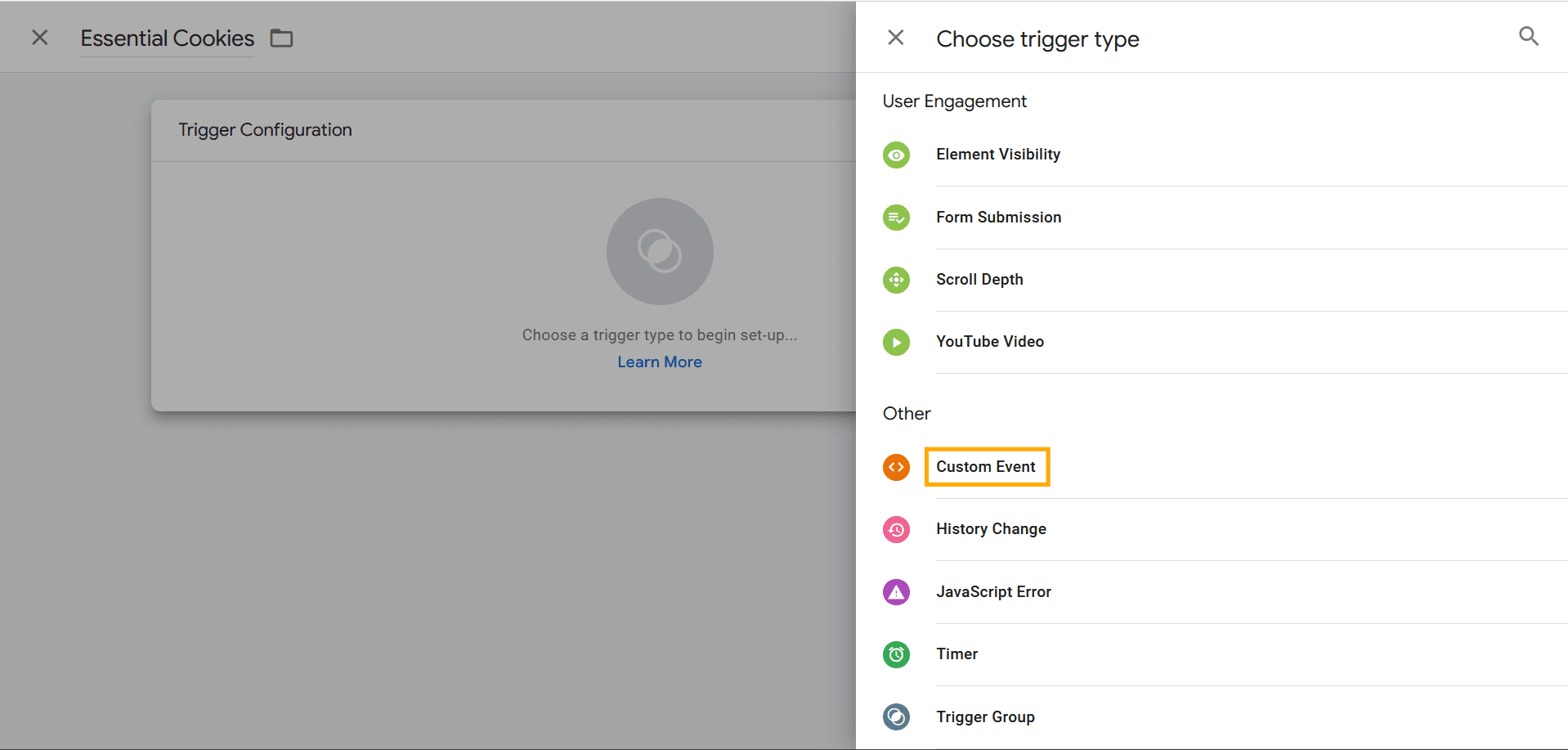
Then, set the Event Name to essential-activated.
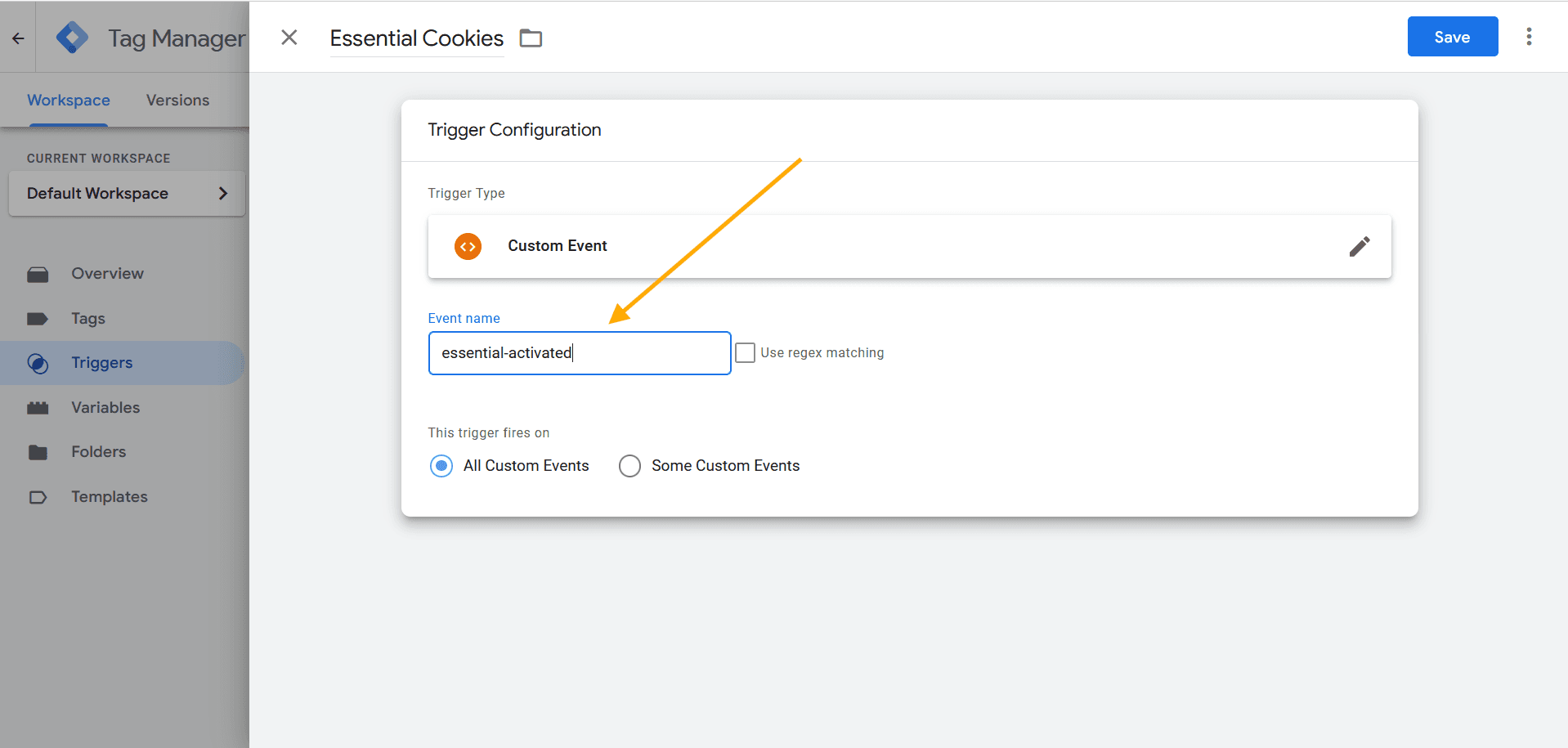
Then, select Some Custom Events.
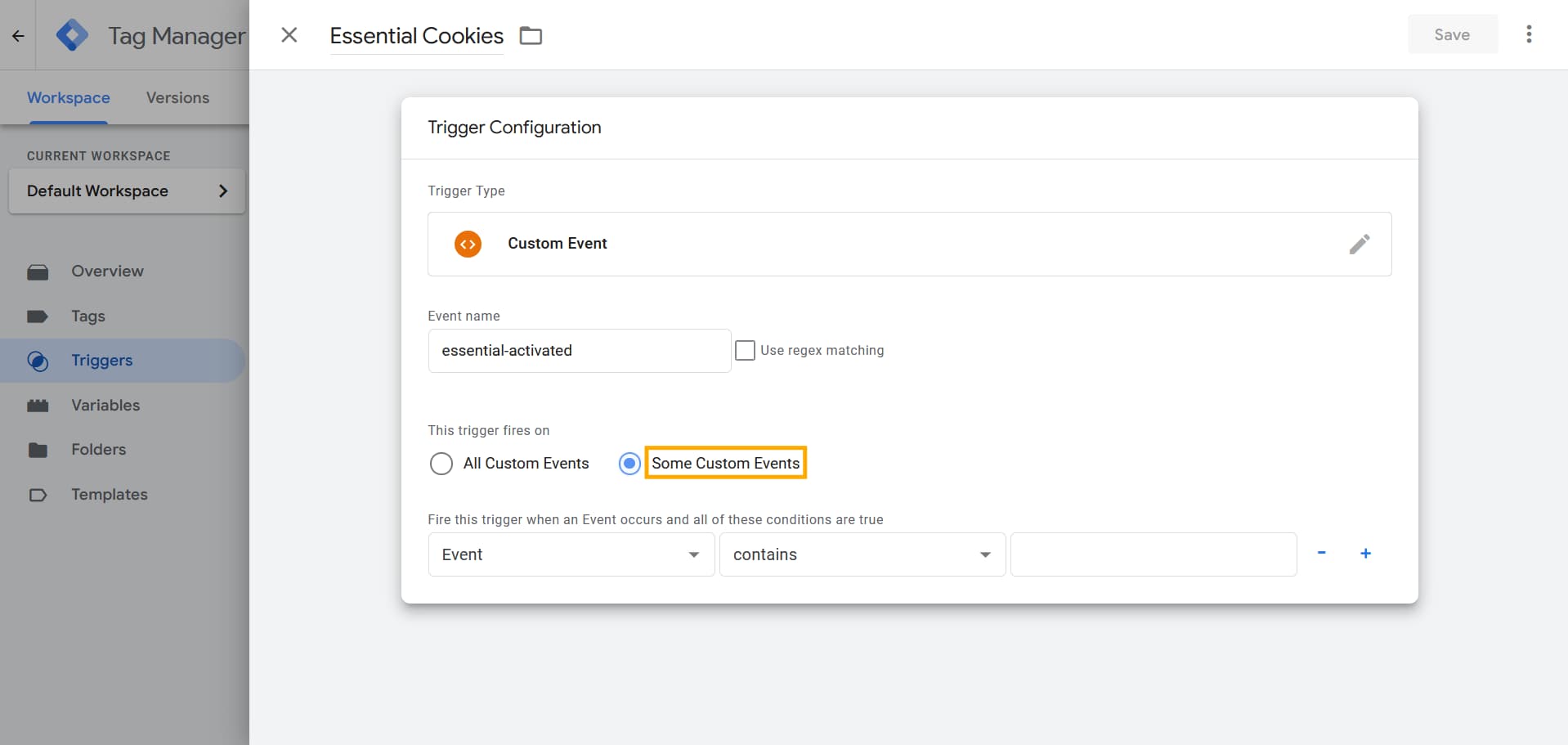
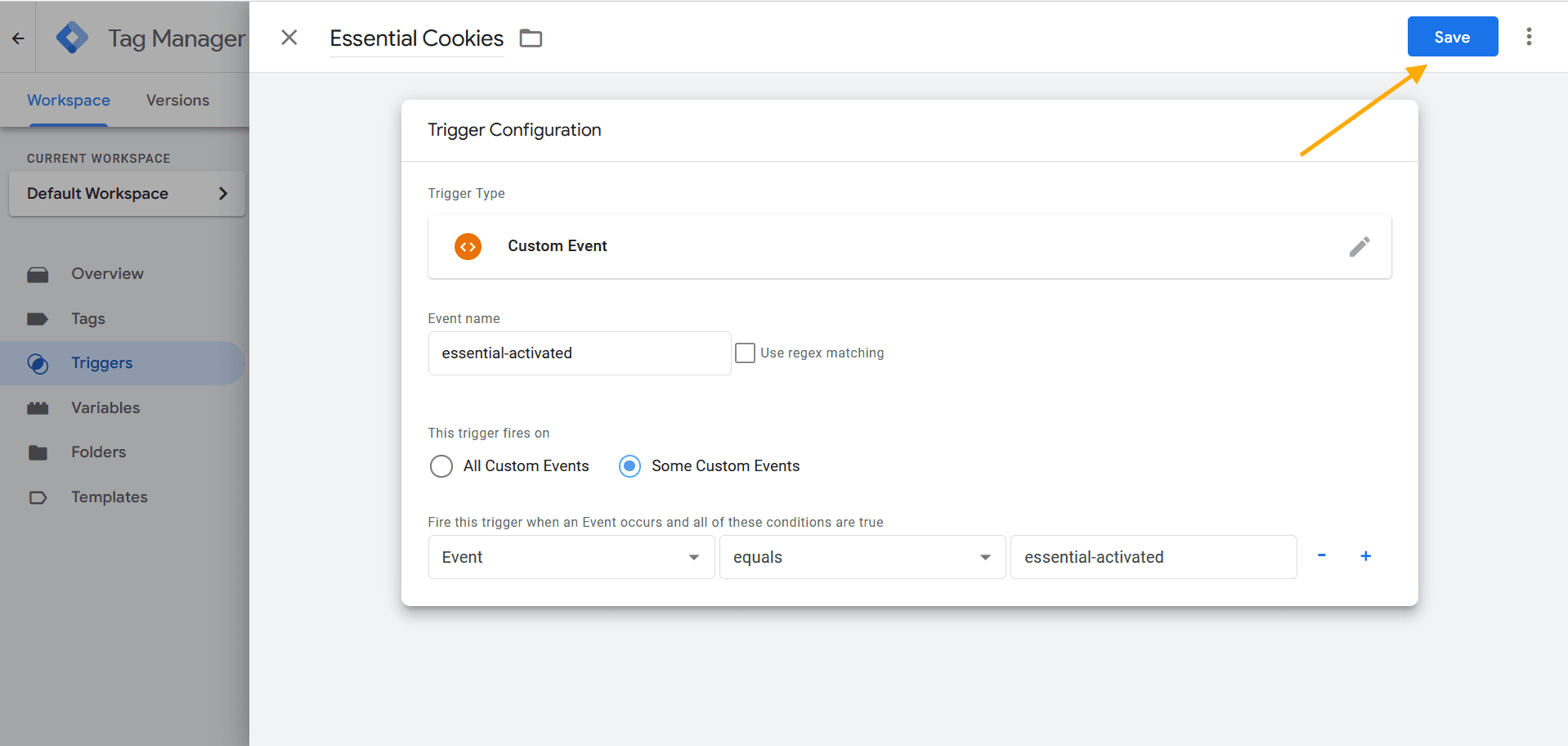
Then, select Event, set the condition to equals, and enter essential-activated, as shown in the image.
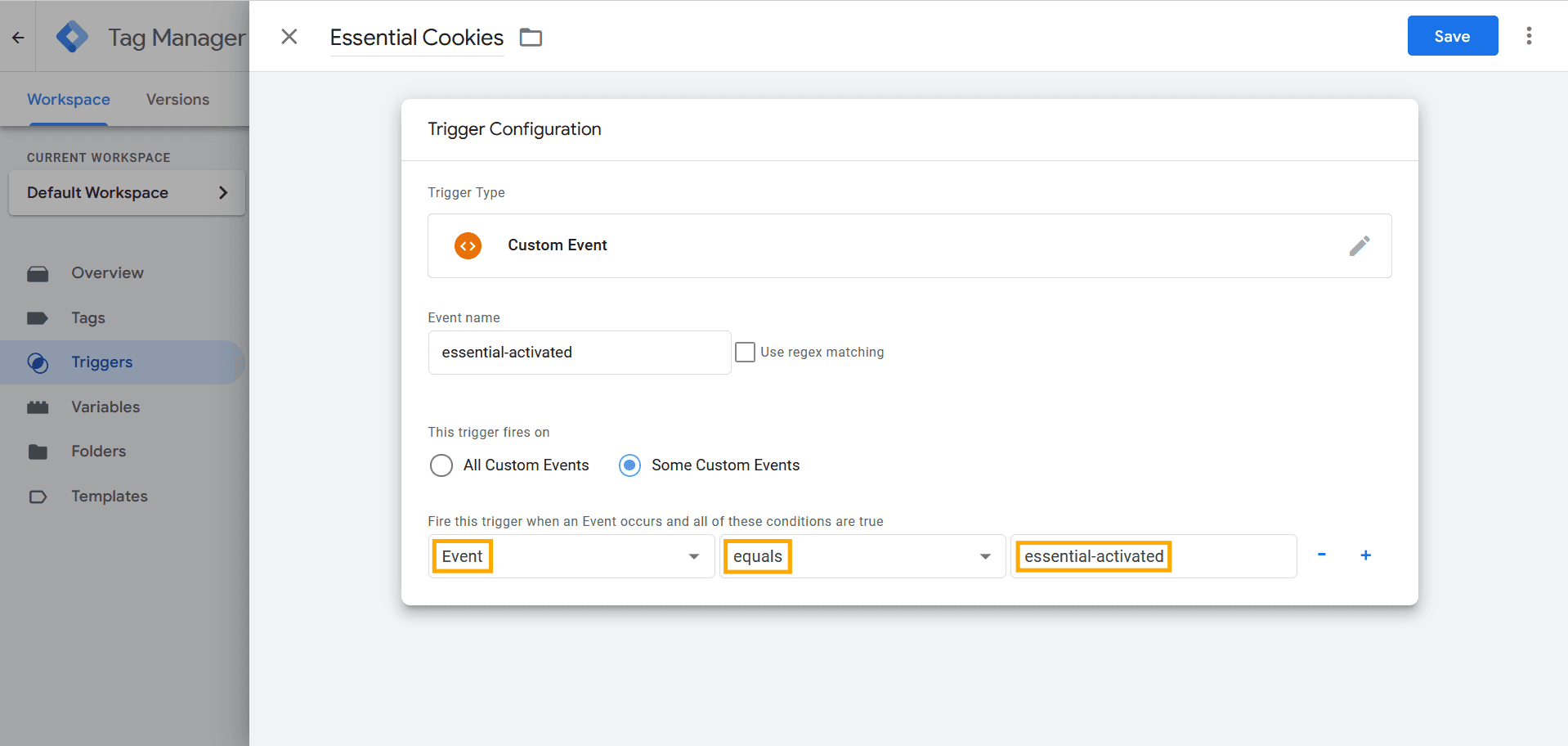
Then, click Save to save the trigger configuration.
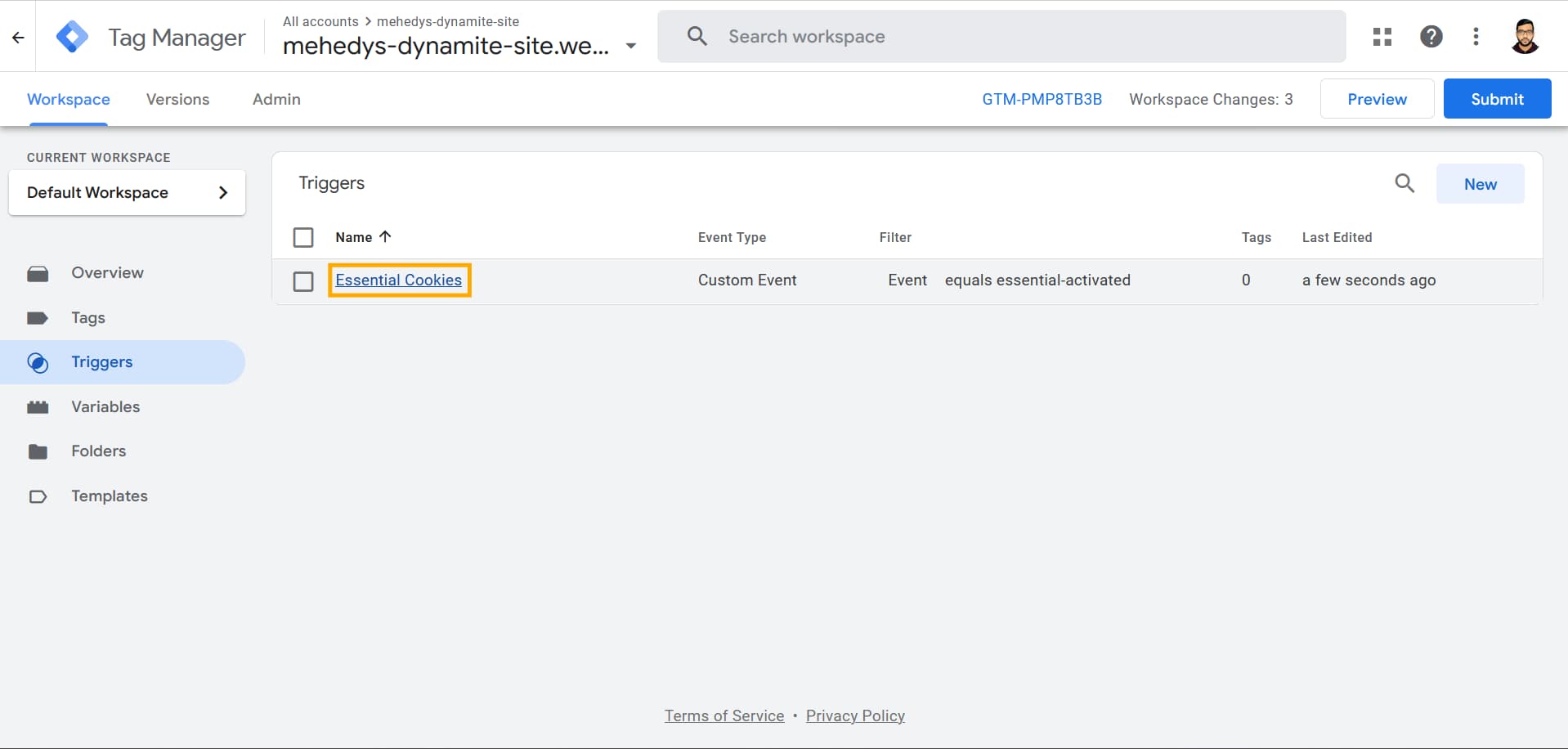
Then, you will see Essential Cookies added to the triggers list.
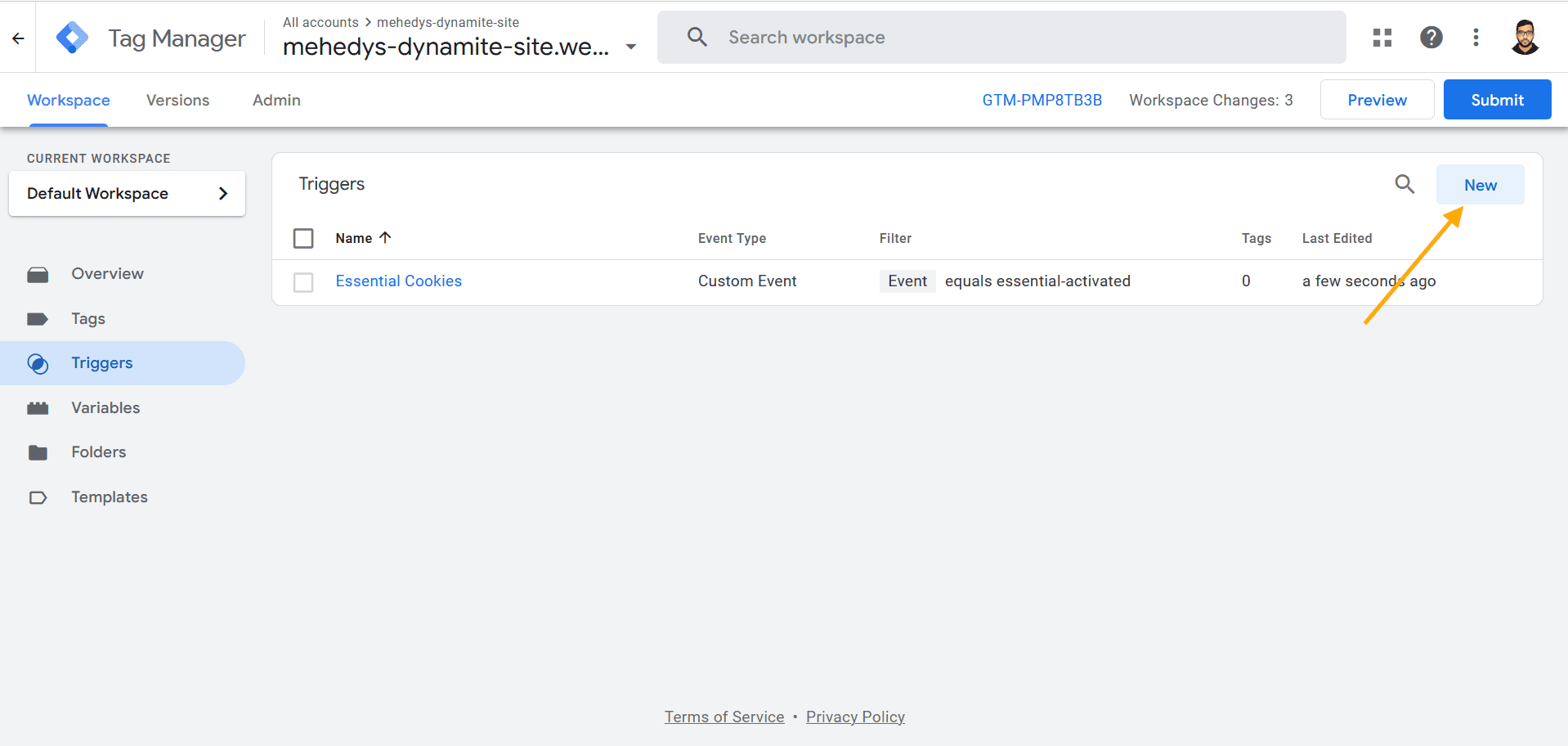
Similarly, create a trigger for Marketing Cookies by clicking New again.
Then, name the trigger Marketing Cookies and click Trigger Configuration.
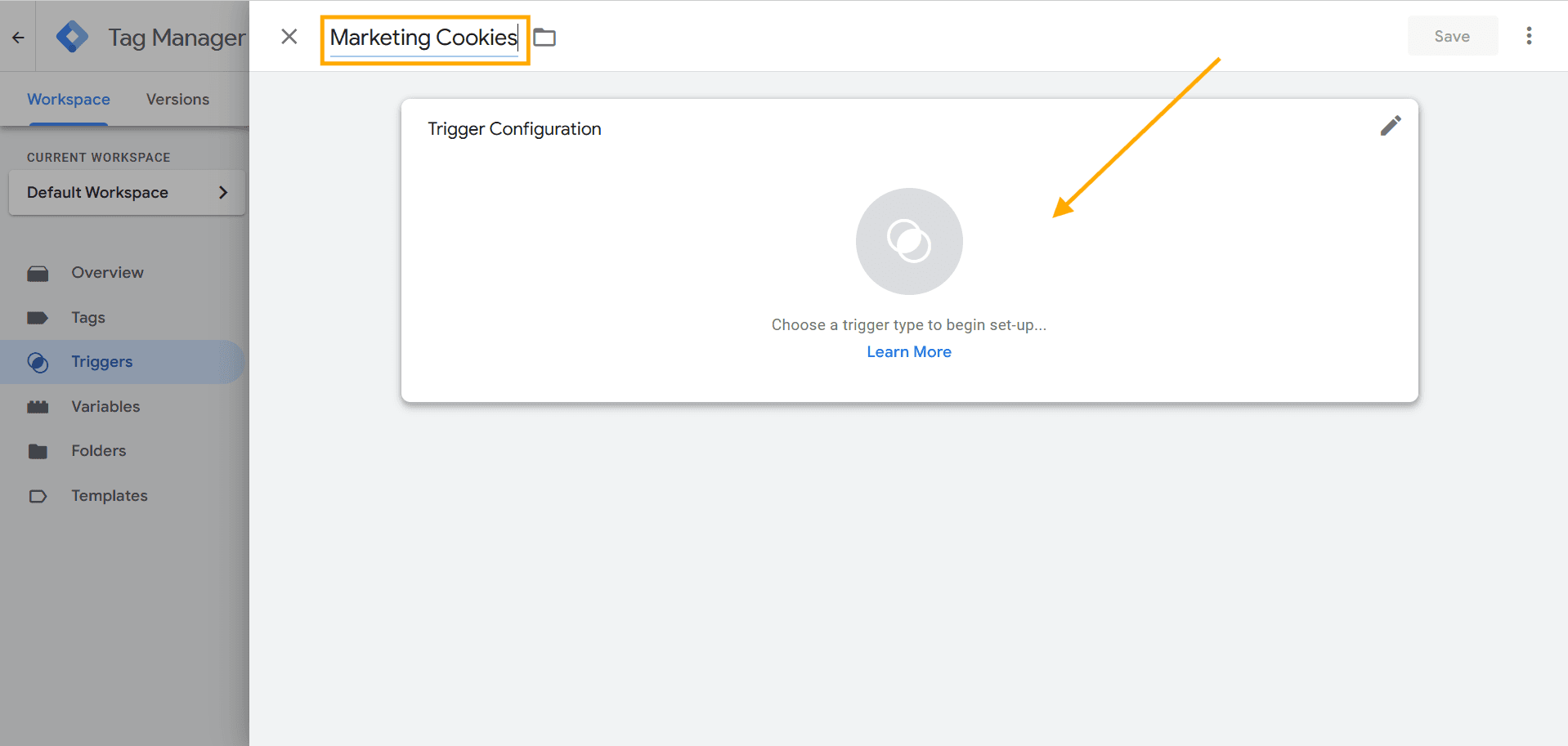
Then, select Custom Event.
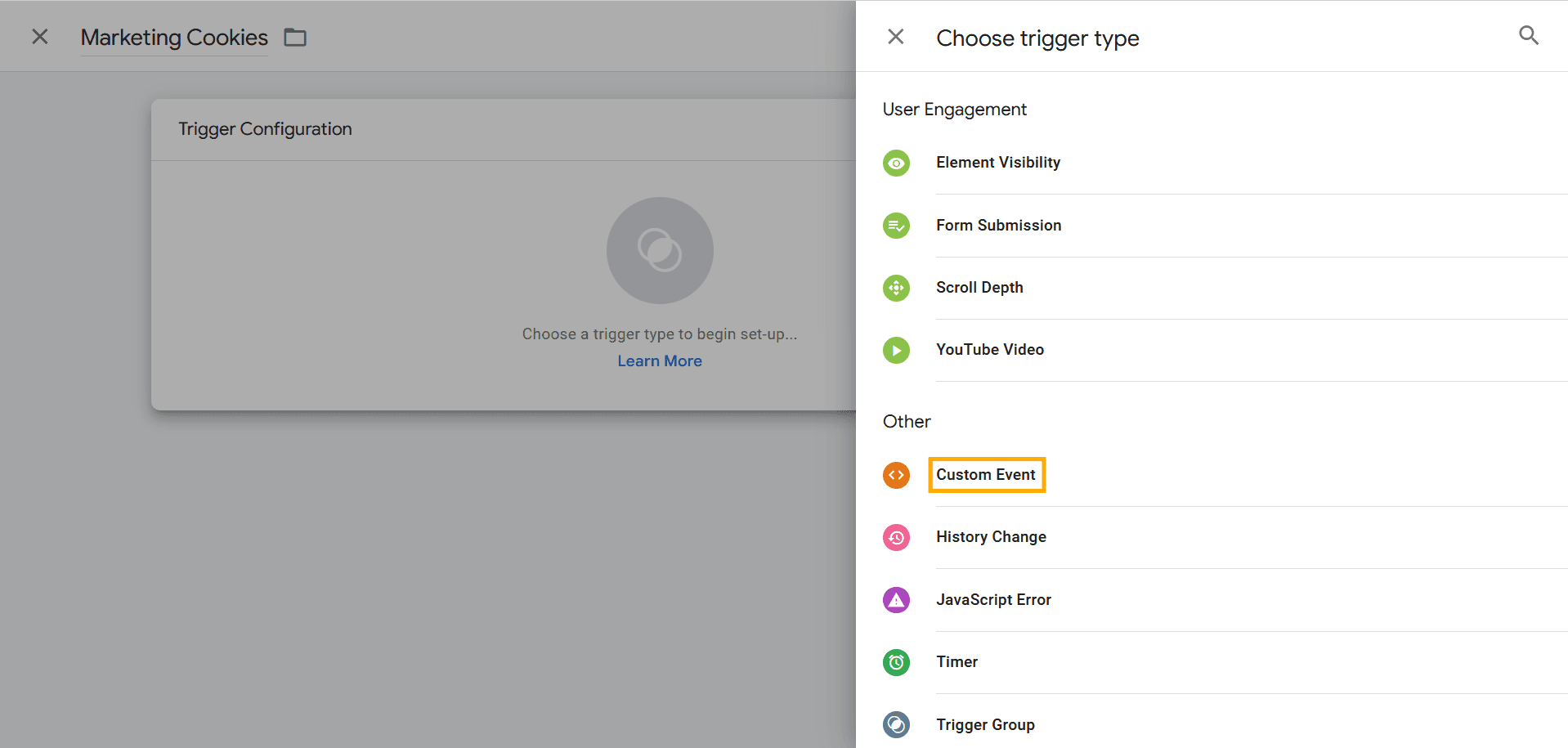
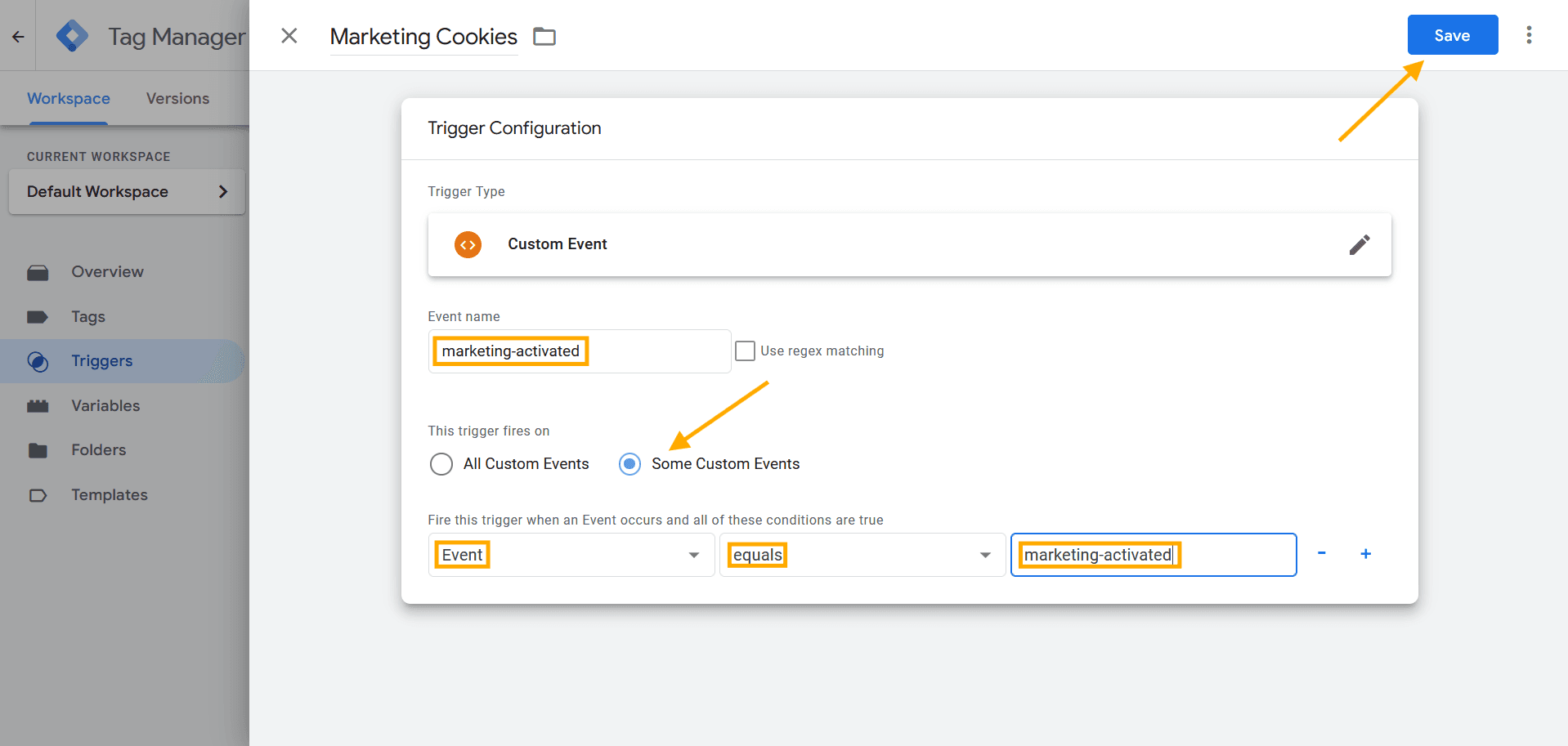
Then, set the Event Name to marketing-activated, select Some Custom Events, configure the condition as Event equals marketing-activated, and click Save.
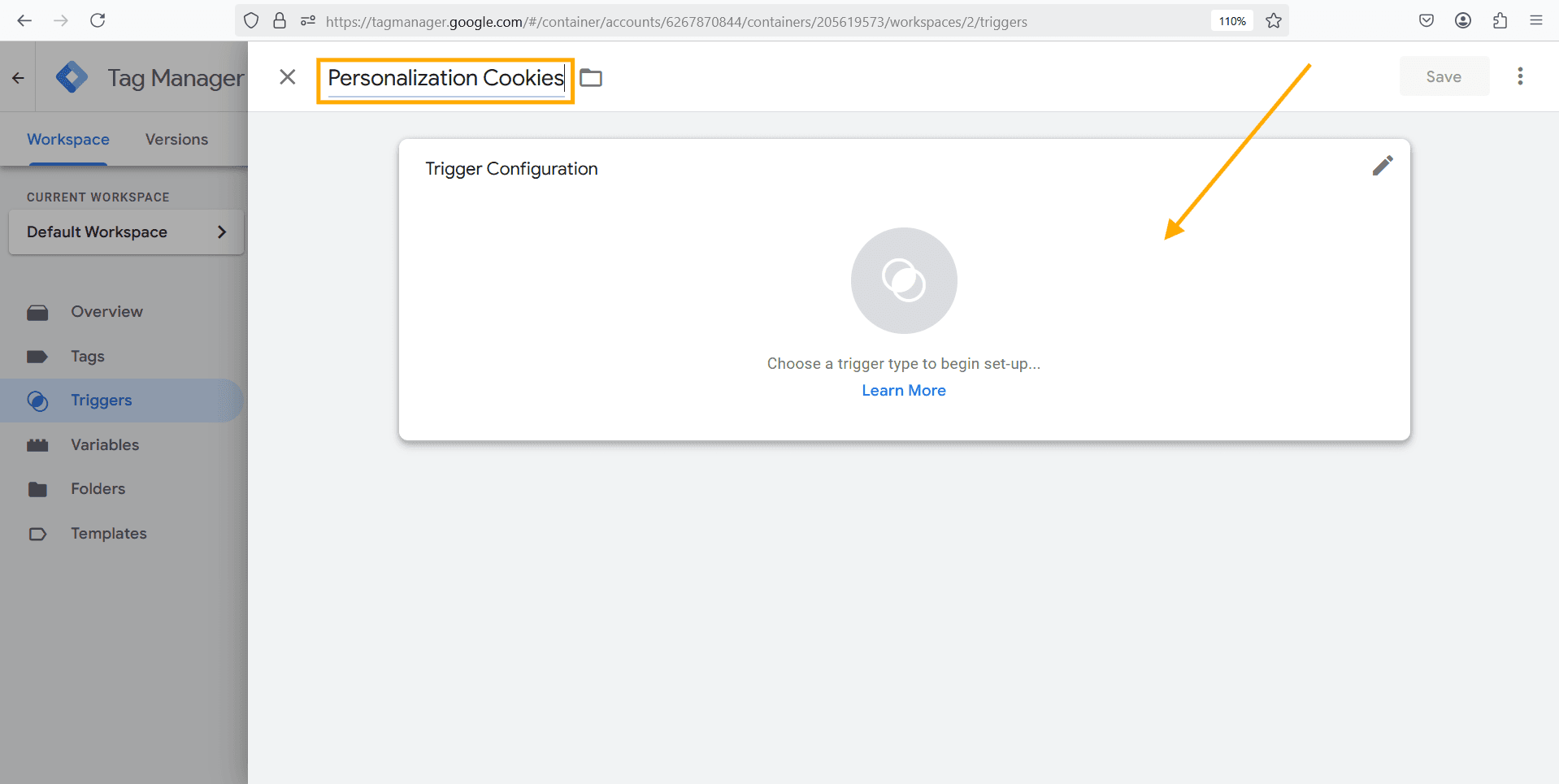
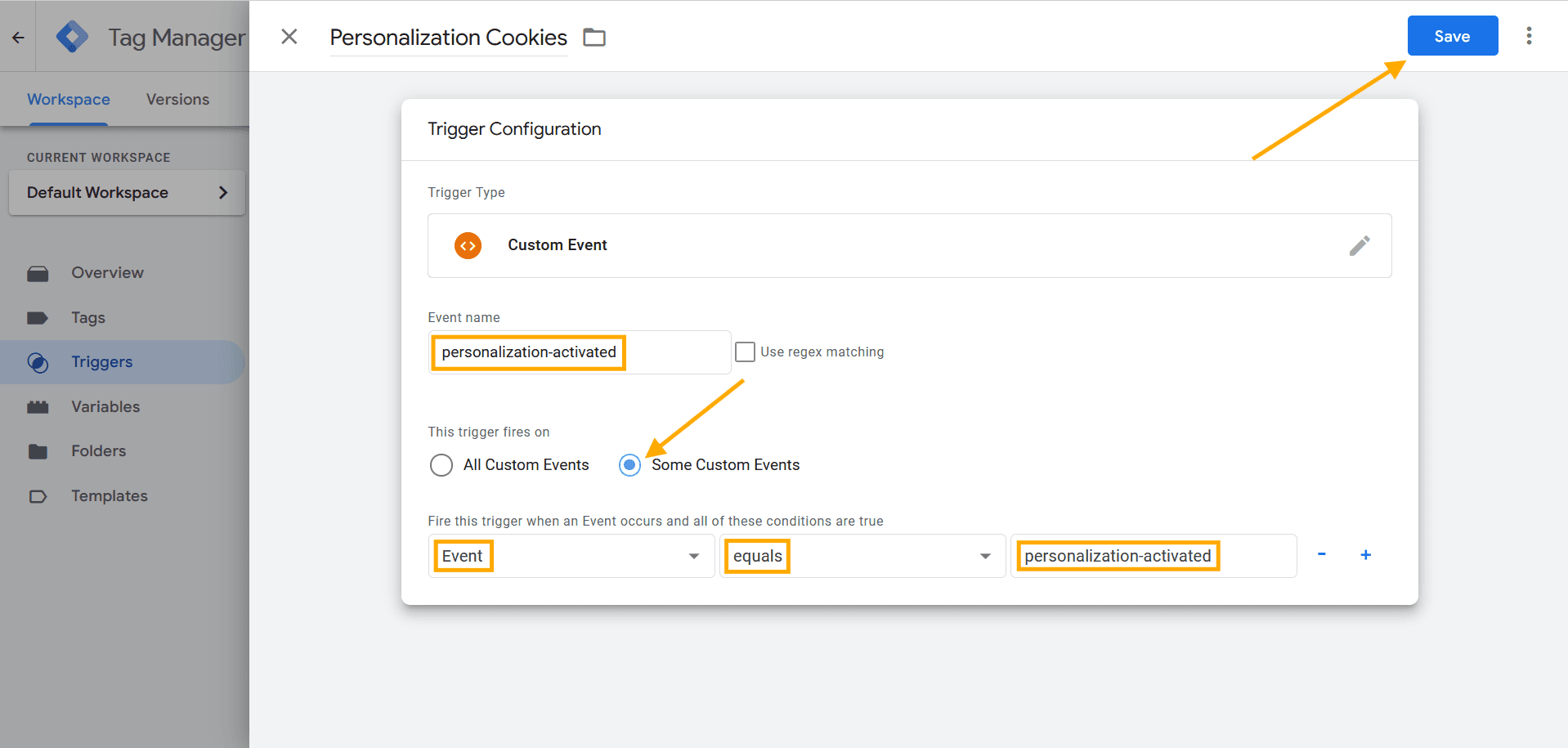
Then, name the new trigger Personalization Cookies and click Trigger Configuration.
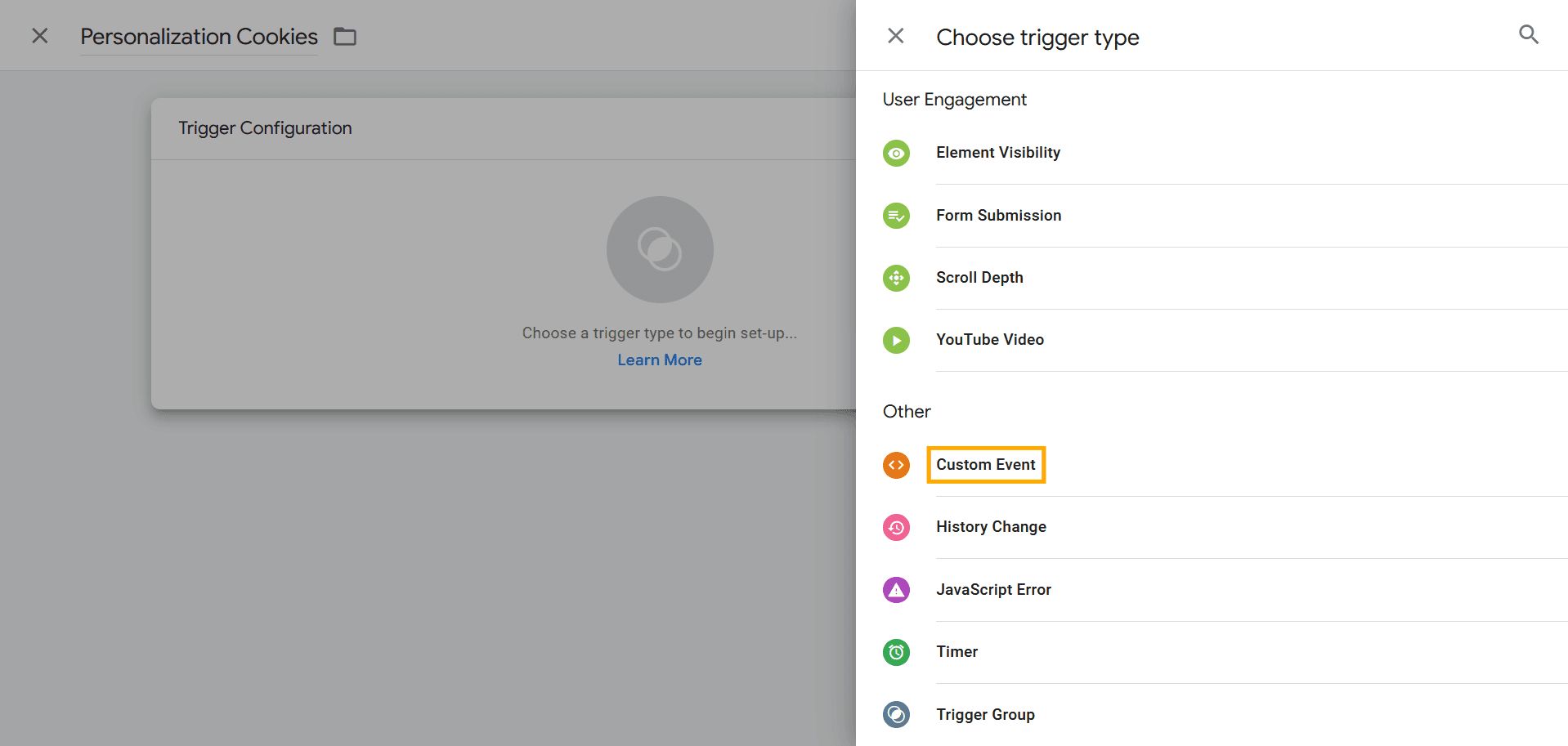
Then, select Custom Event.
Then, set the Event Name to personalization-activated, select Some Custom Events, configure the condition as Event equals personalization-activated, and click Save.
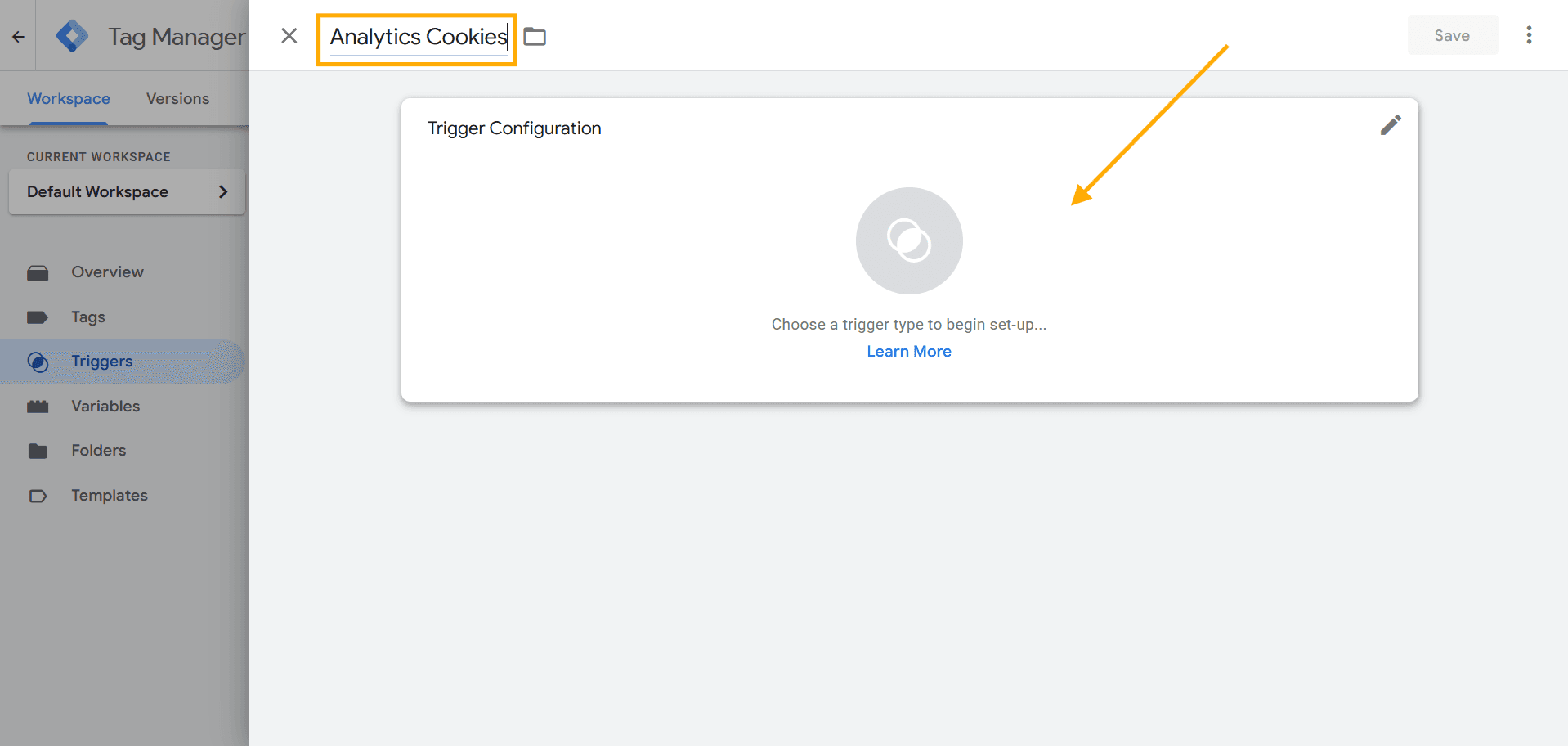
Then, create a new trigger named Analytics Cookies and click Trigger Configuration.
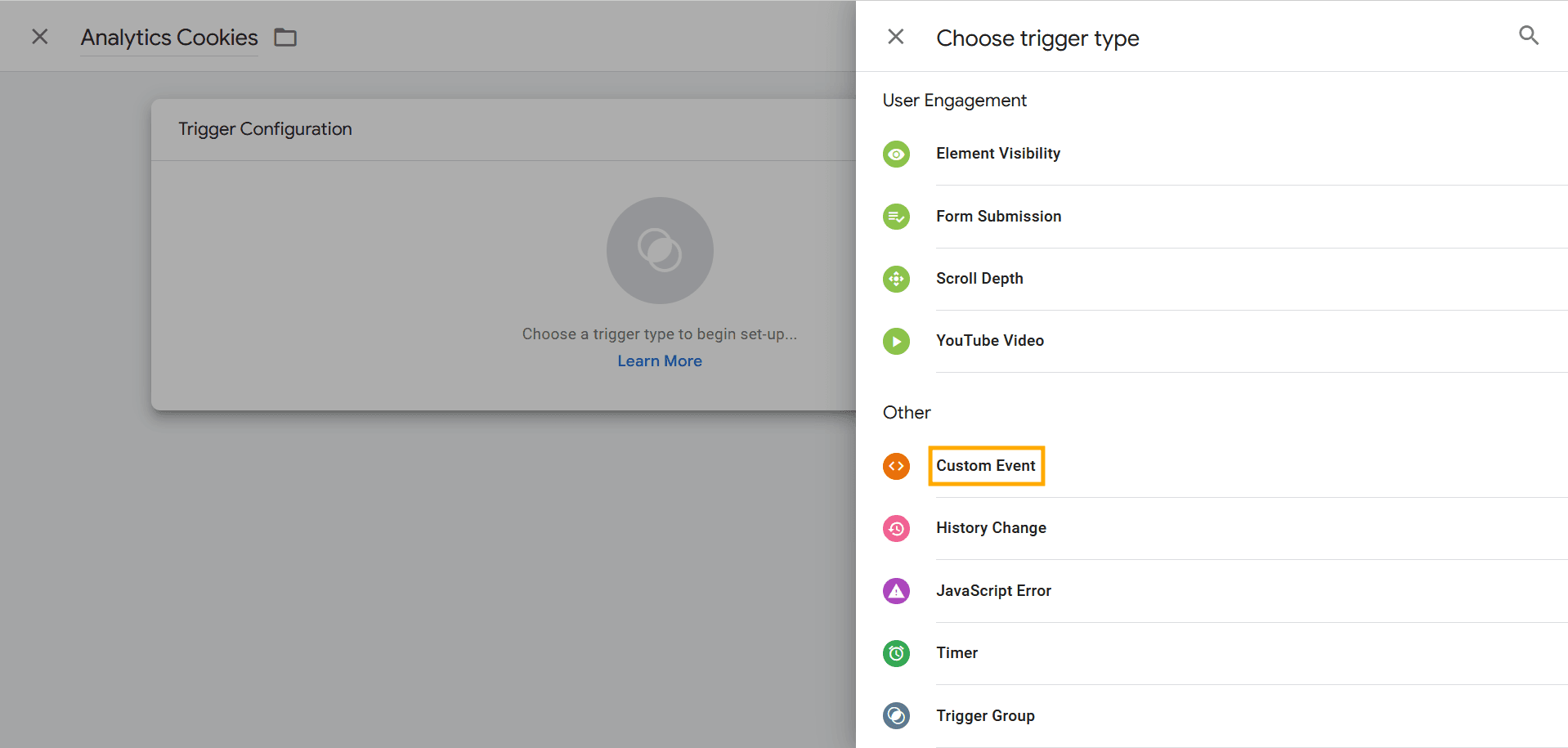
Then, select Custom Event.
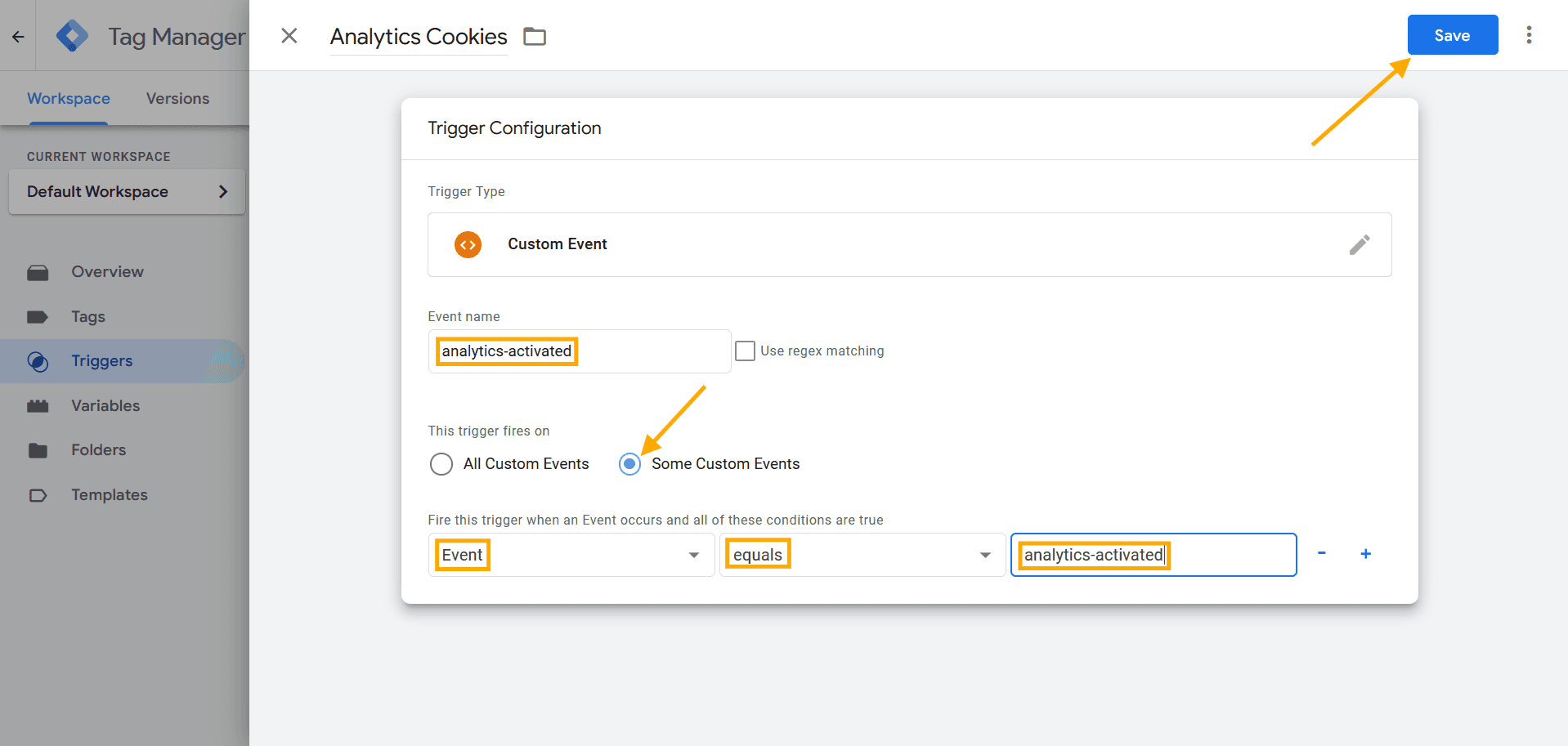
Then, set the Event Name to analytics-activated, select Some Custom Events, configure the condition as Event equals analytics-activated, and click Save.
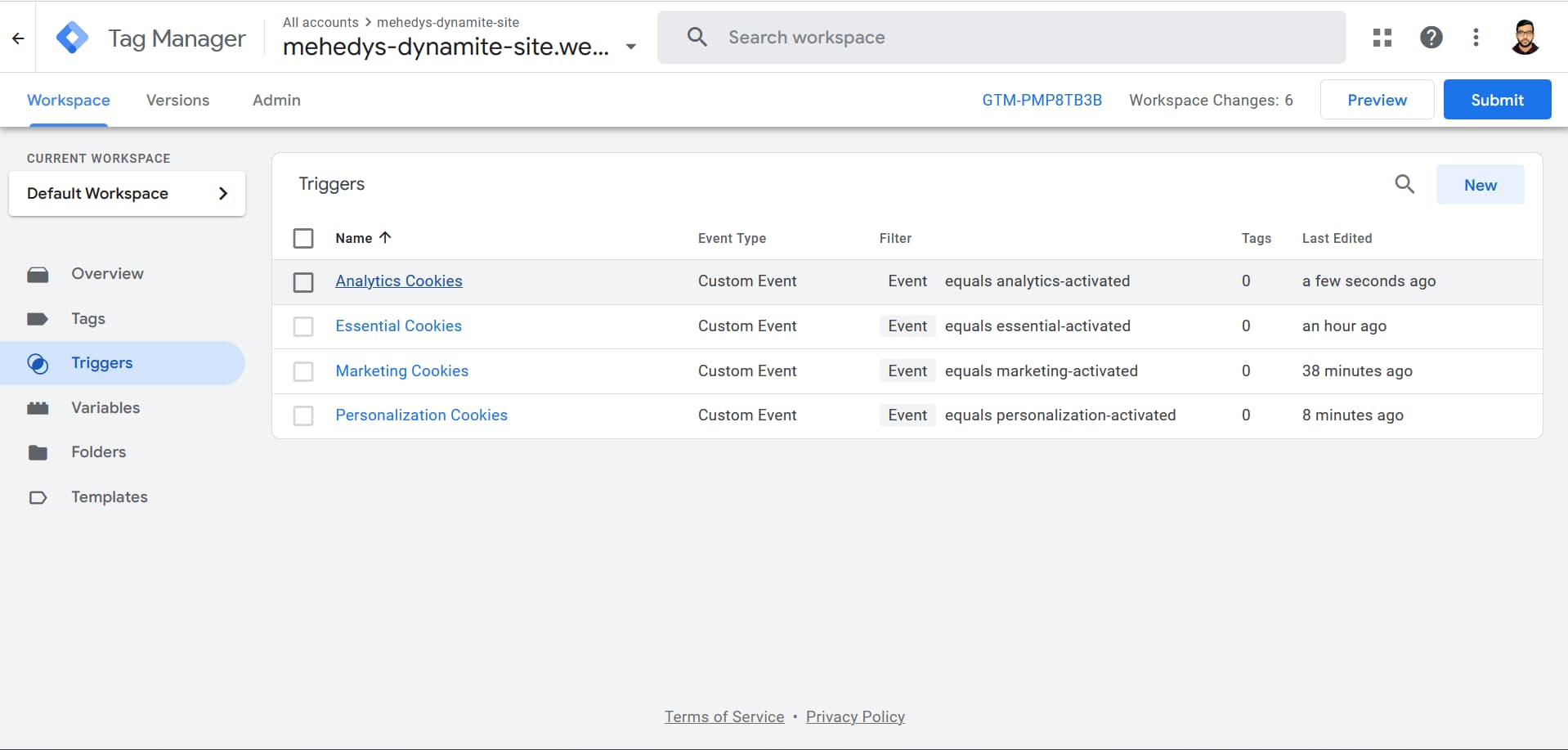
Then, you will see four triggers—Analytics Cookies, Essential Cookies, Marketing Cookies, and Personalization Cookies—added to the triggers list.
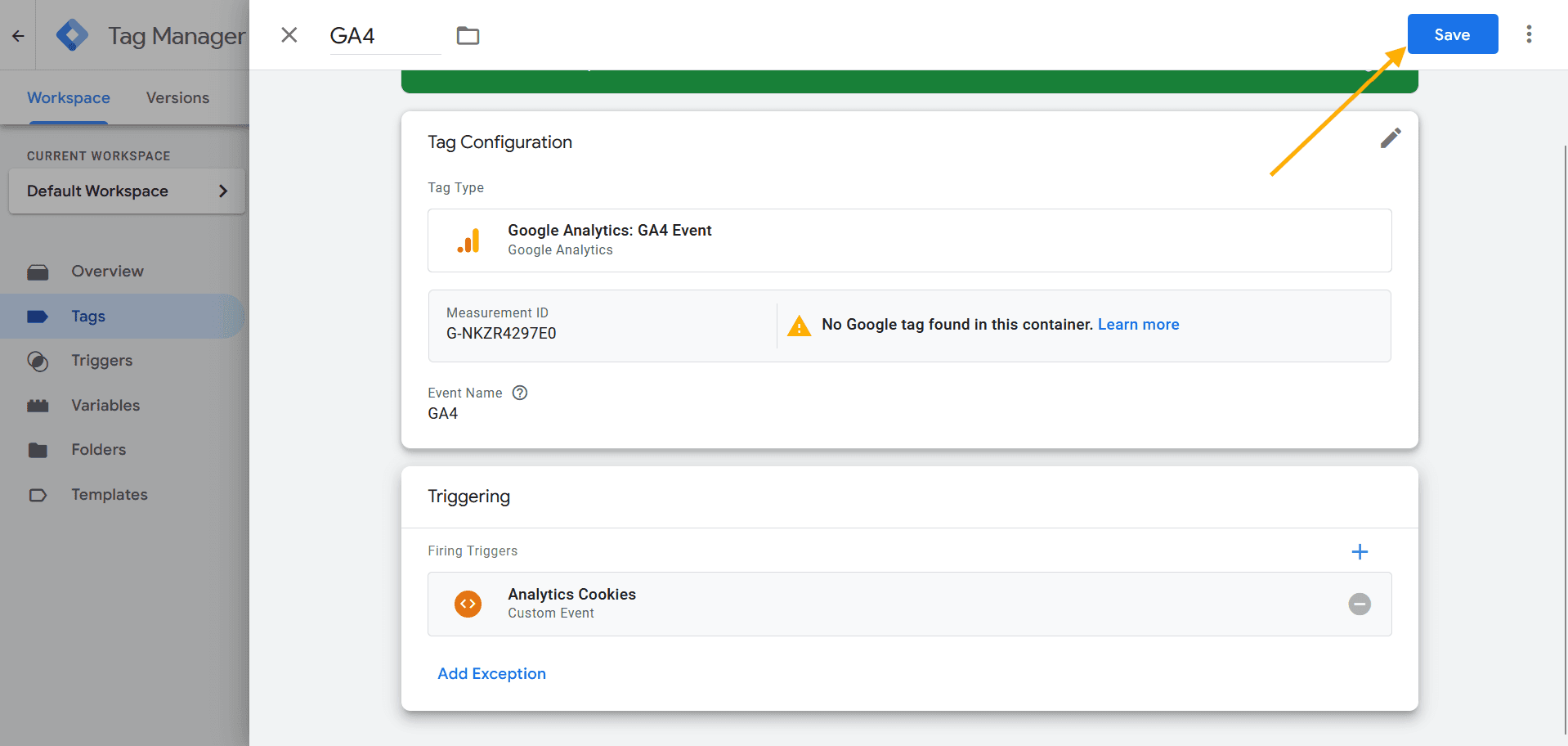
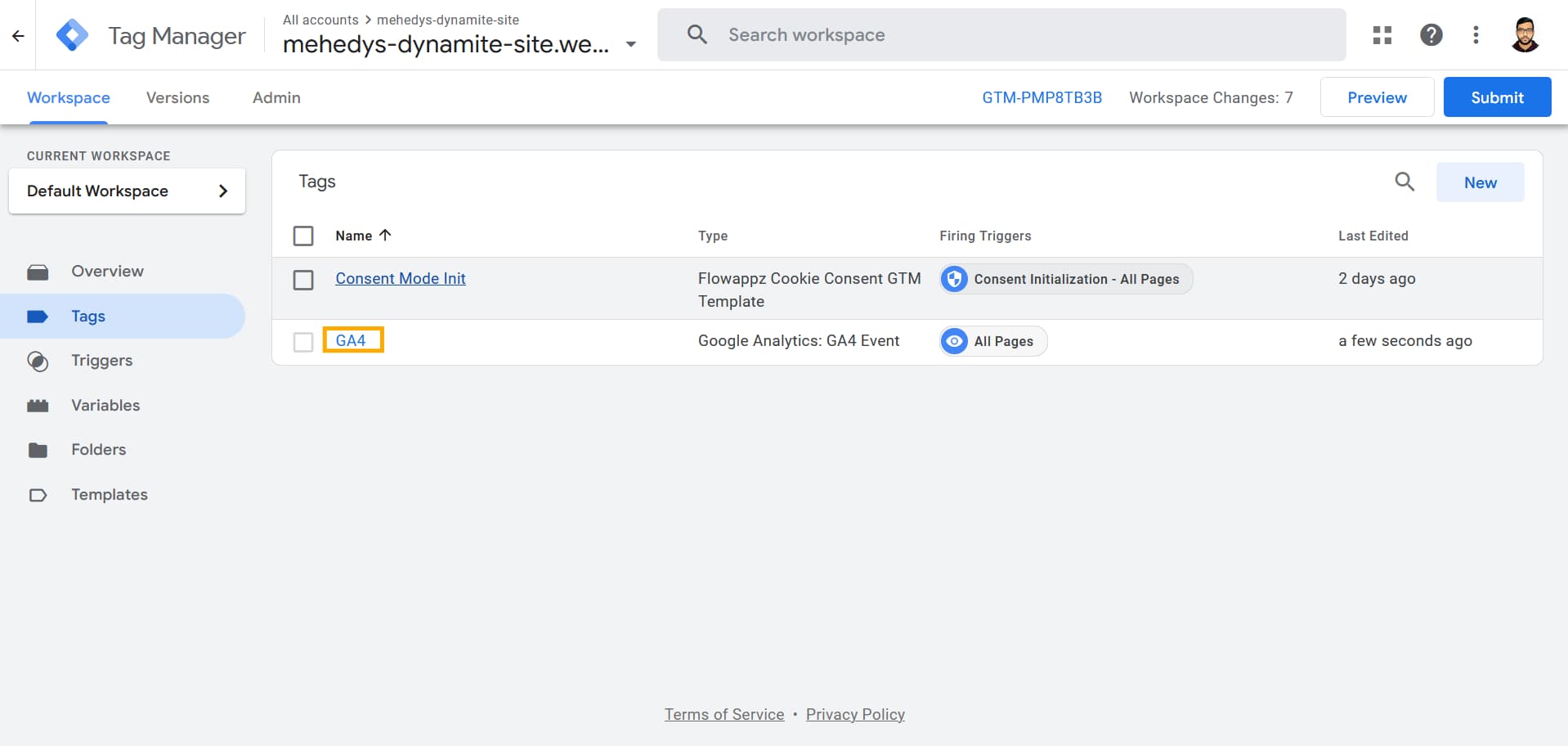
Next, attach the Analytics Cookies trigger to your Google Analytics tag. Go to the Tags tab and open your Google Analytics tag.
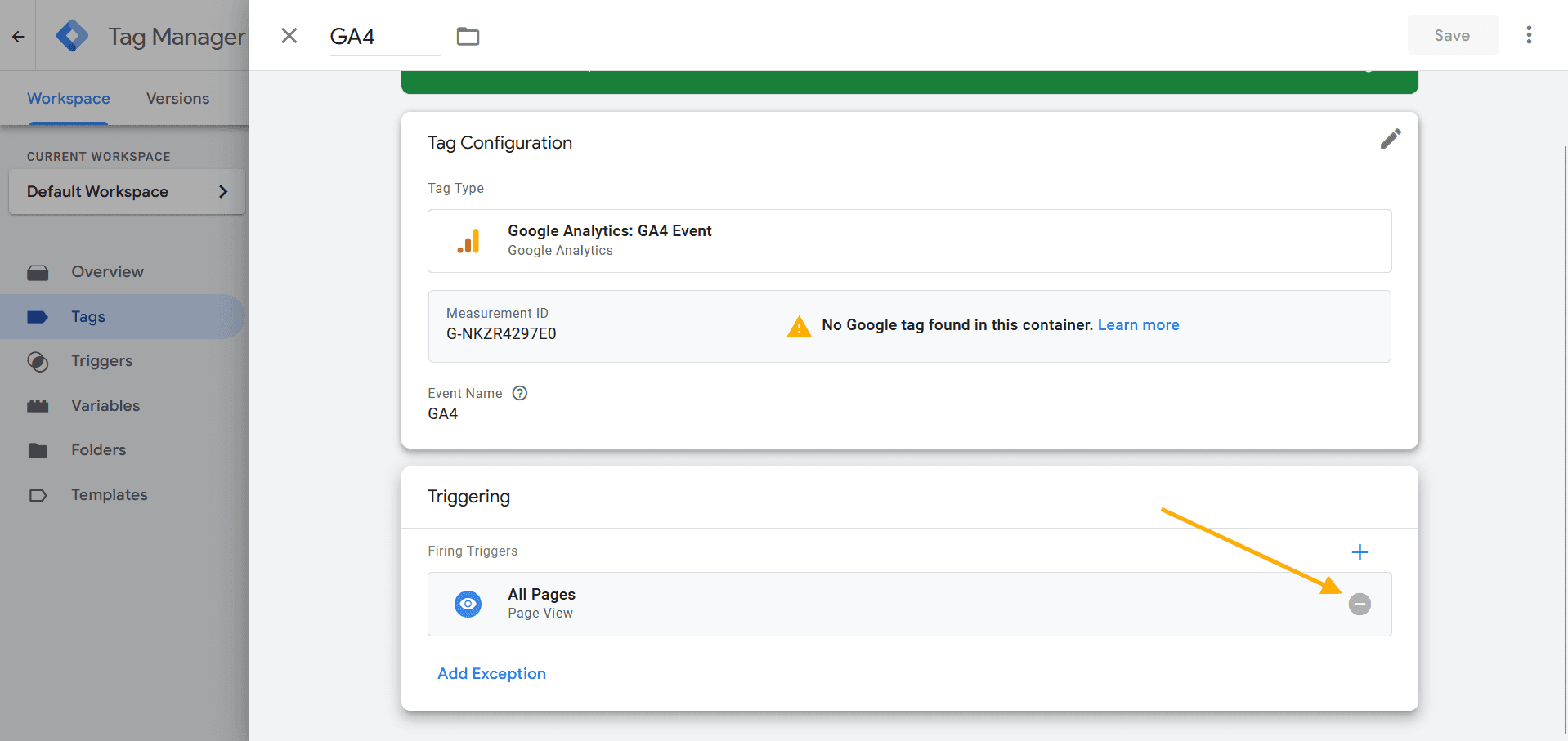
Then, remove All Pages from Triggering.
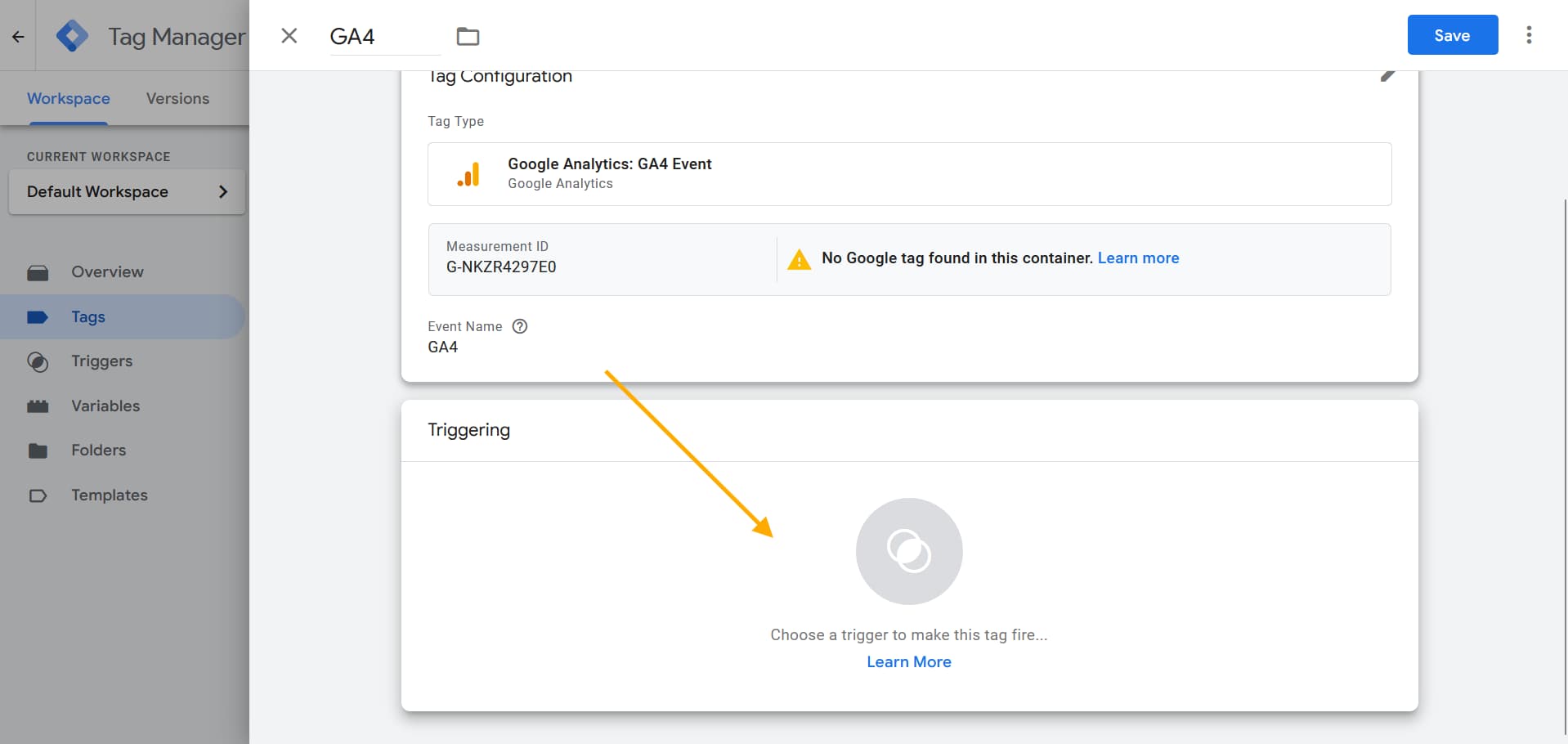
Then, click Triggering again.
Then, select Analytics Cookies.
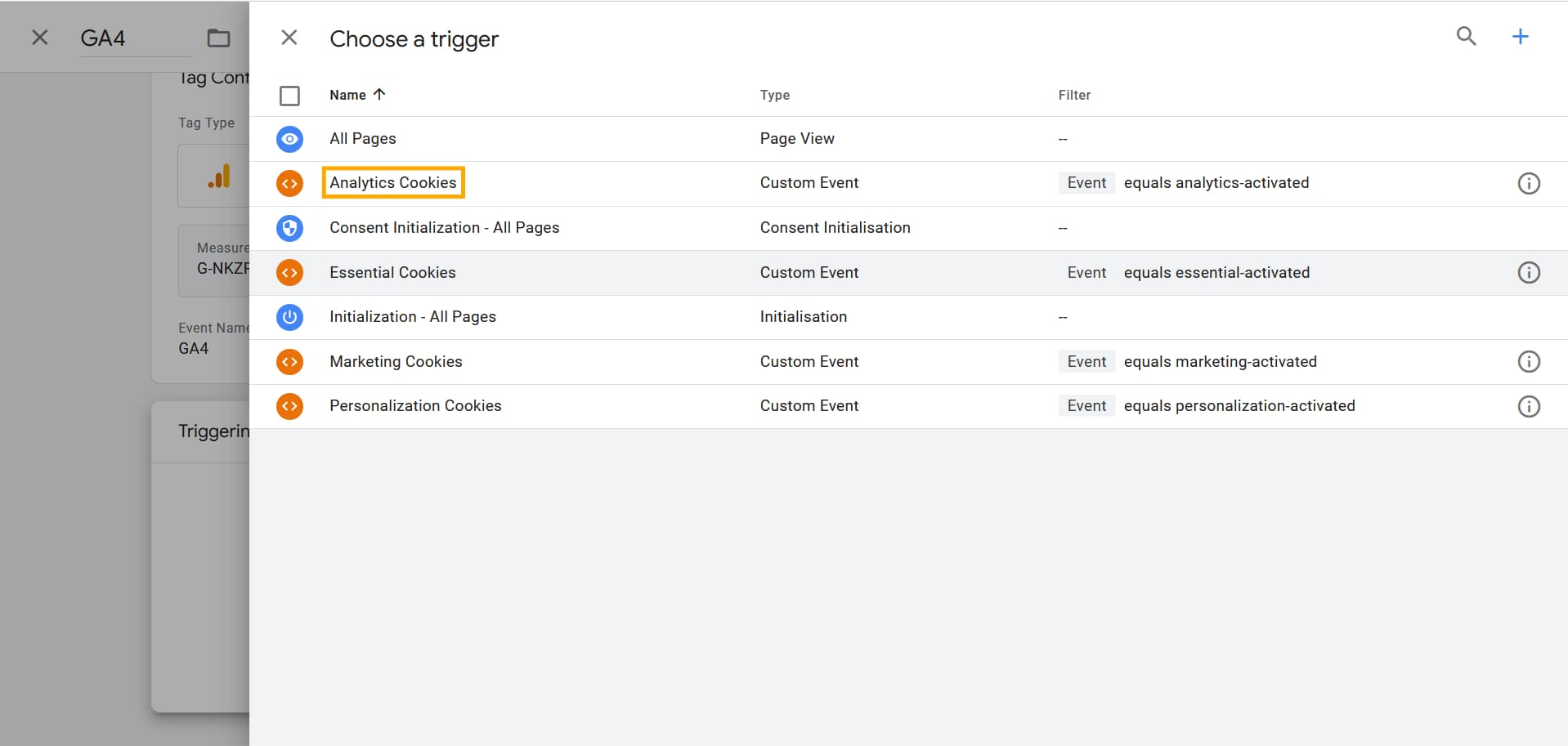
Then, click Save. The Google Analytics tag will fire only after users consent to Analytics.