Google Analytics Setup
Step-by-step GA4 setup: create an account and property, add a web data stream, and copy your Measurement ID (G-xxxx).
Create an Analytics account
Your first step is to set up an Analytics account, unless you already have one. Skip to creating a property unless you want to create a separate account for this website and/or app. For example, you might want to create another account if this website and/or app belong(s) to a separate business.
Go to https://analytics.google.com.
If this is your first time using Google Analytics, click Start Measuring. If you already have an account set up, go to step 2.
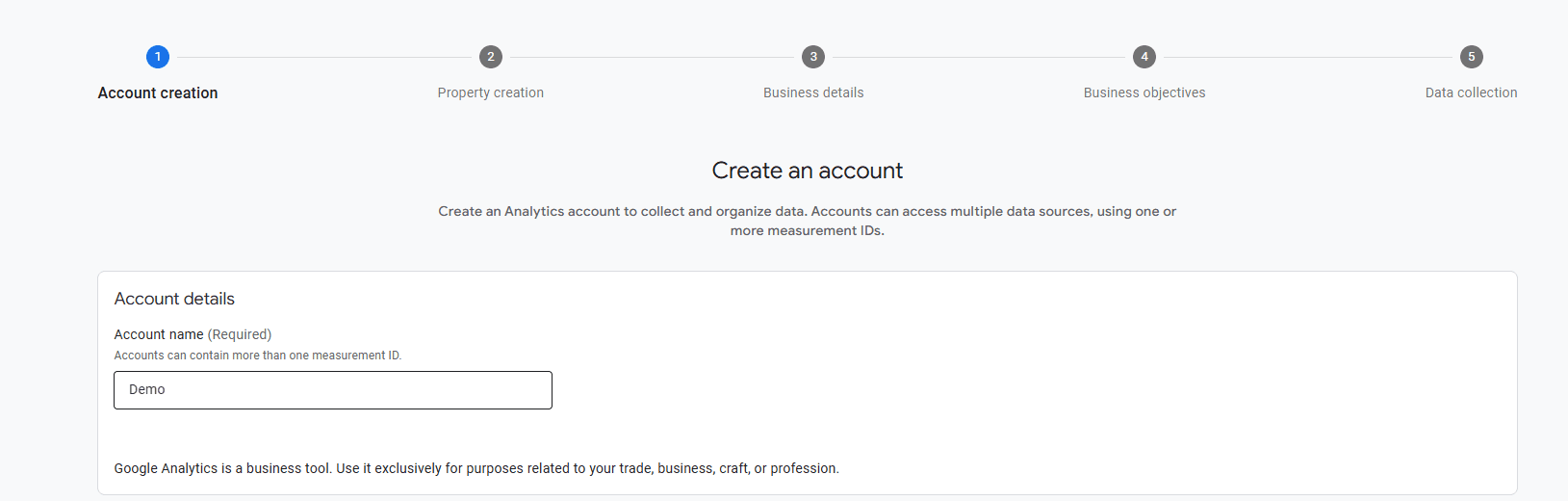
In Admin, click Create, then select Account.
Note: The previous link opens to the last Analytics property you accessed. You can change the property using the property selector. You must be a Viewer or above at the account level to create an Analytics account.
Provide an account name. Configure the data-sharing settings to control which data you share with Google.
Click Next to add the first property to the account.
For more https://support.google.com/analytics/answer/9304153?hl=en
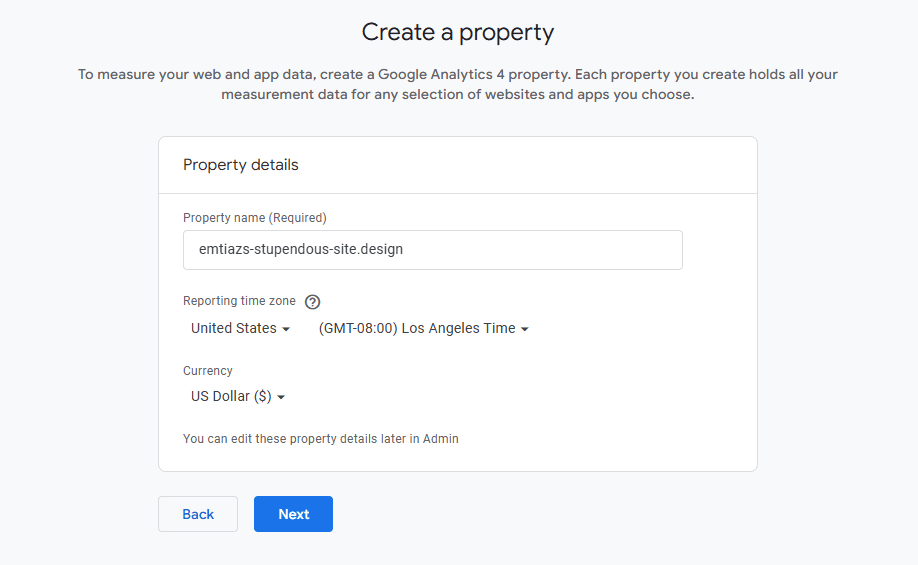
Create a property
Enter a name for the property (e.g. "My Business, Inc website") and select the reporting time zone and currency. If a visitor comes to your website on a Tuesday in their time zone, but it's Monday in your time zone, the visit is recorded as having occurred on Monday.
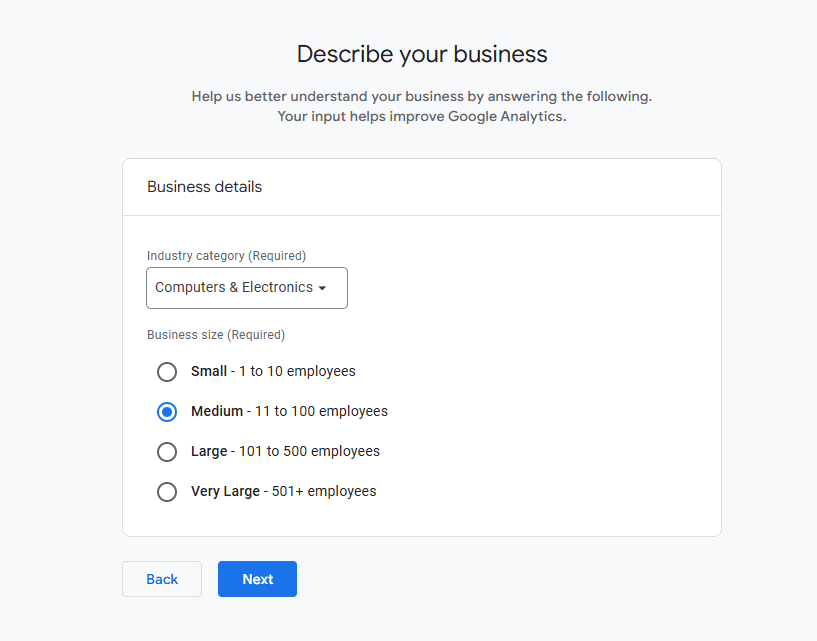
Describe your business
Click Next. Select your industry category and business size.
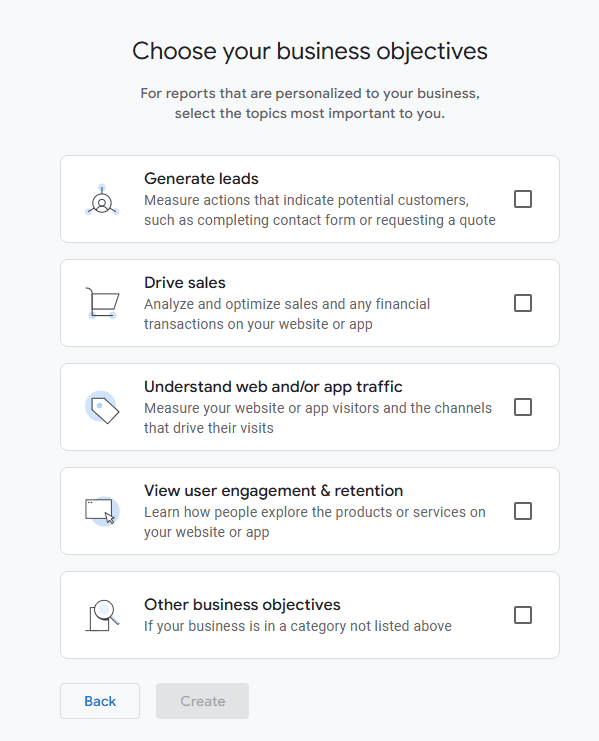
Choose your business objectives
Click Next. Select how you intend to use Google Analytics.
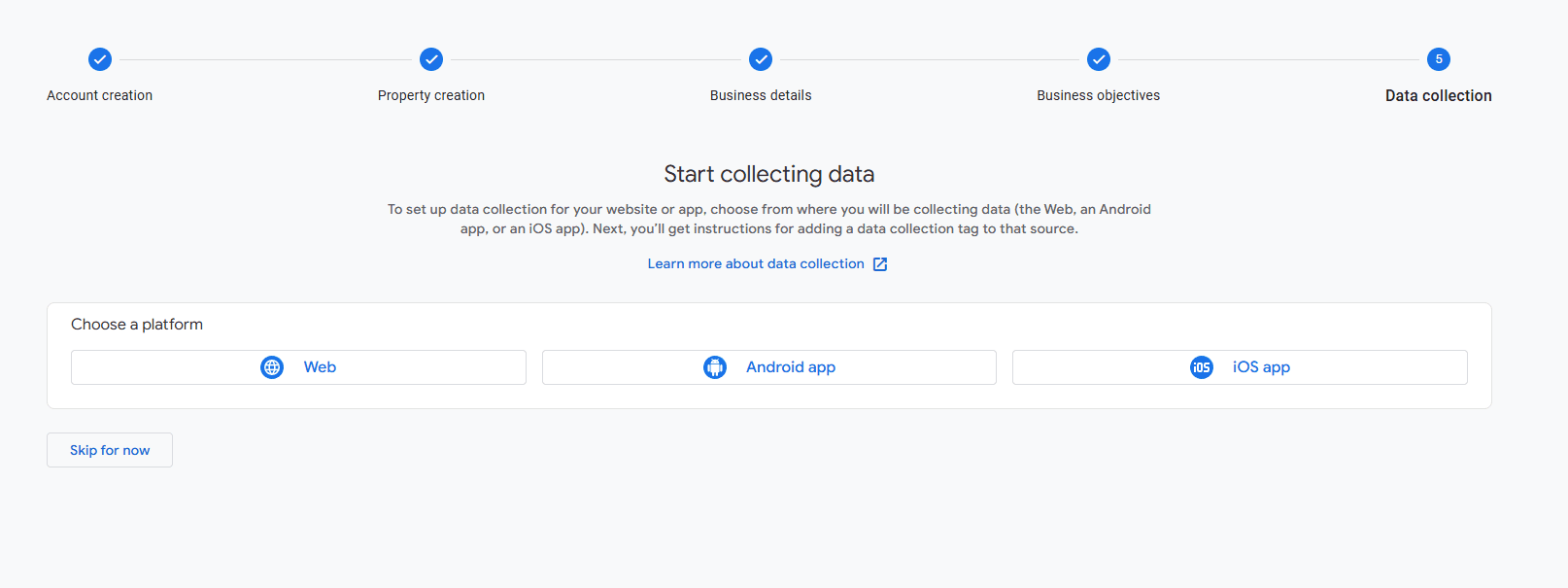
Start collecting data
Select web
Enter the URL of your primary website, e.g., "example.com", and a Stream name, e.g. "Example, Inc. (web stream)".
To know more https://youtu.be/UuE37-MM1ws
Get GA-ID
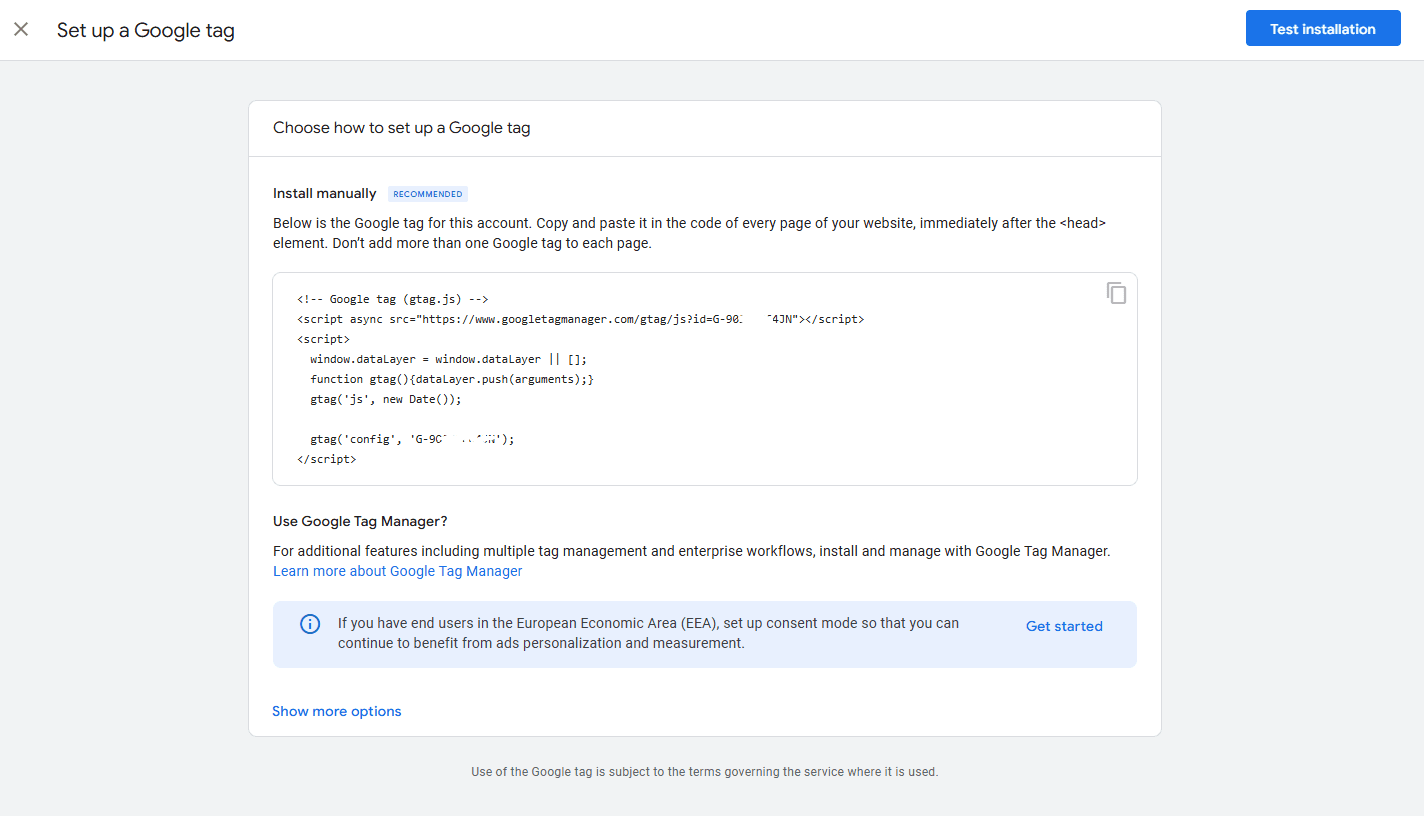
Now you can get Google Analytics ID from the embed code. Copy the G-90SJ*****JN code and keep it somewhere so you can use it later
Note:
for the cookie consent hub, we adding that gtag script through the app so you dont have to add that into your site